
1. Menu: Click Settings.
2. Click General Ledge (GL) Setting which located under Payroll.

3. Click edit button on which GL setting that you wish to edit.
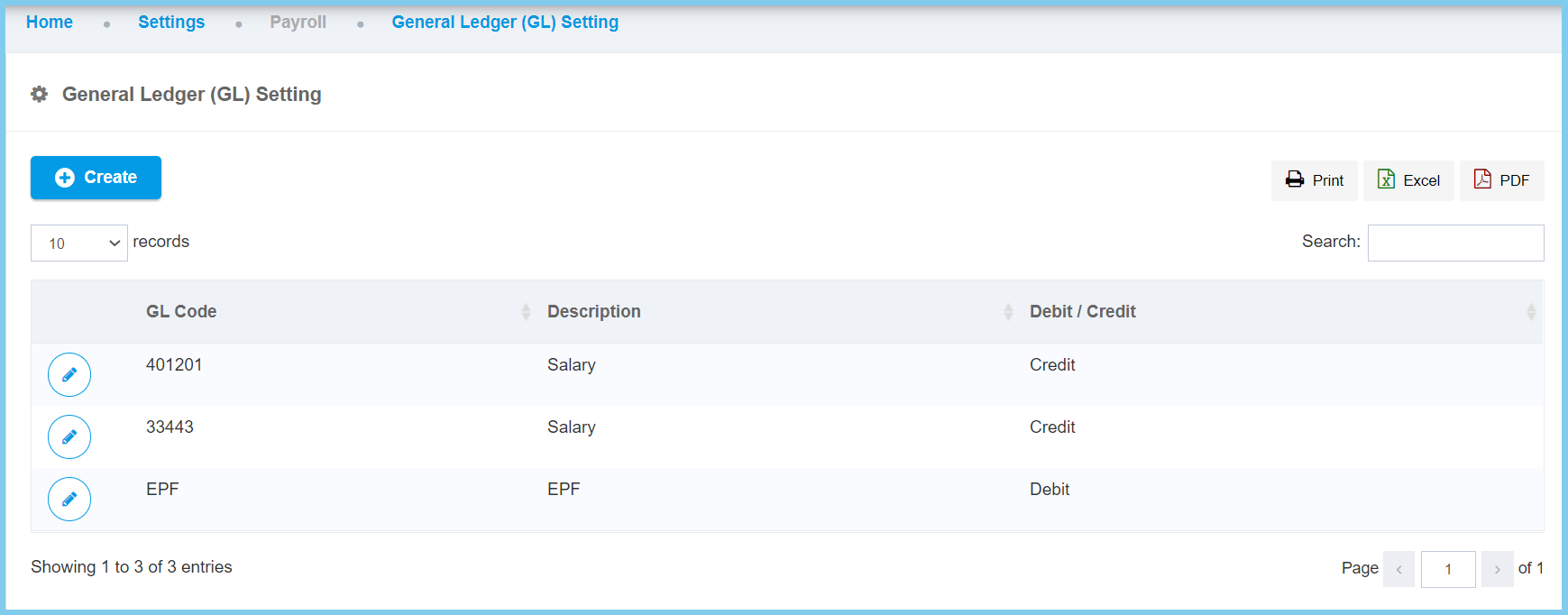
4. Edit the form.
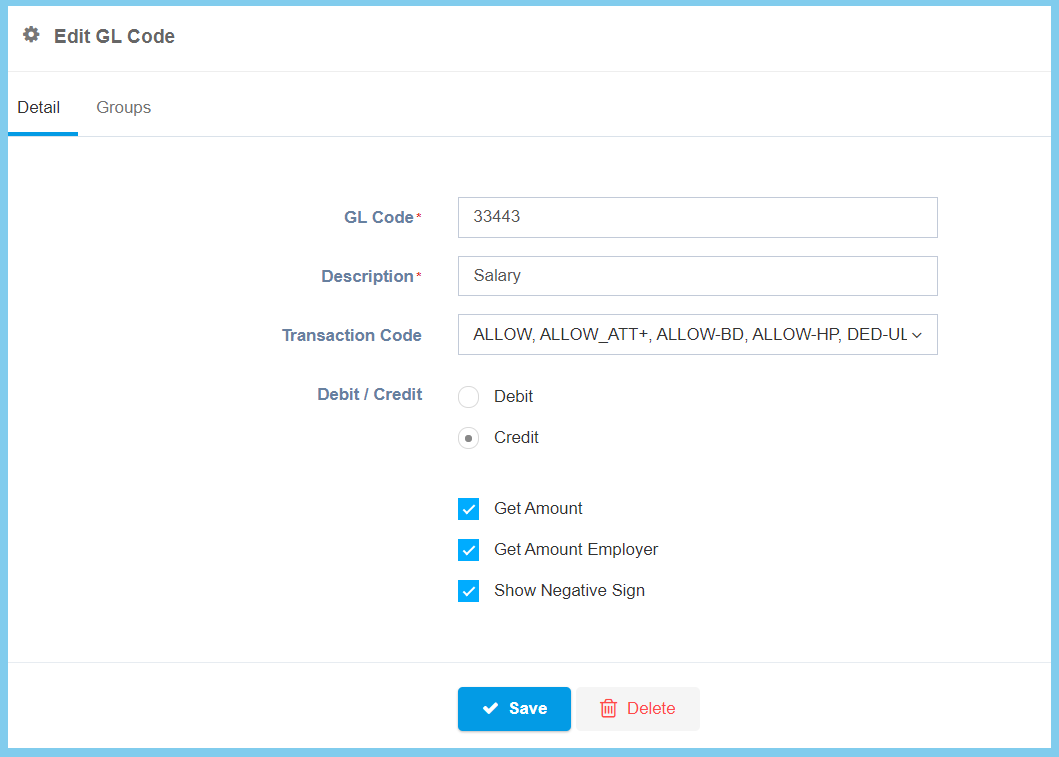
Note: There has another section call Groups to edit.
5. Back to Detail.
6. Click Save button.
General Ledge (GL) Setting Configuration Option Explaination
| Option | Allowed Values | Description |
|---|---|---|
| GL Code | Any alphanumeric | To set a simple and unique code for GL setting. |
| Description | Any alphanumeric | Any description about this GL setting. |
| Transaction Code | Setup from code settings | Choose a transaction code for GL setting purposes.
Click here to view setup. |
| Debit/Credit |
|
Type of posting method used for the financial inclusion transaction |
| Get Amount |
|
If enabled, it will get the amount of the respective employee. |
| Get Amount Employer |
|
If enabled, ir will get the amount of the respective employer. |
| Show Negative Sign |
|
If enabled, the negative sign will be shown. |
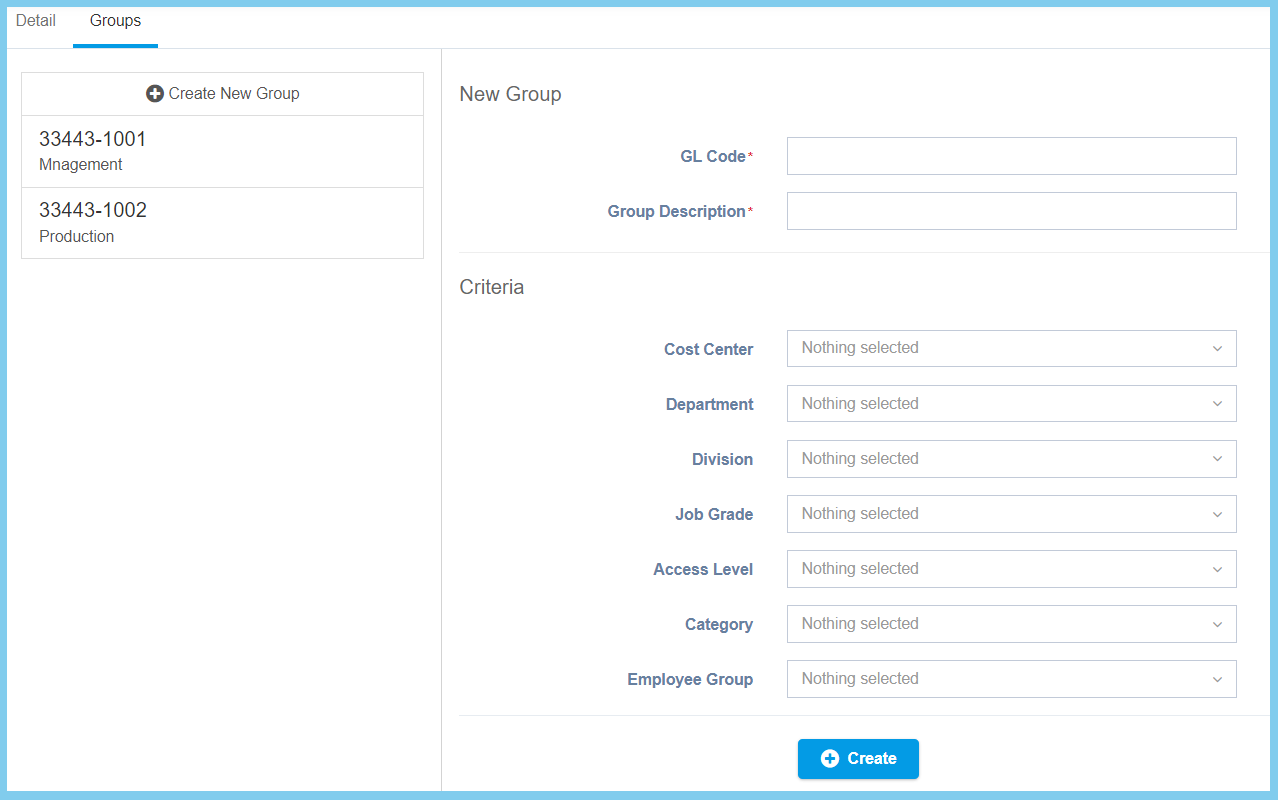
For Groups, you can choose either create a new GL setting or edit previous record.
Create New GL Setting
a. Complete the form.
b. Click Create button.
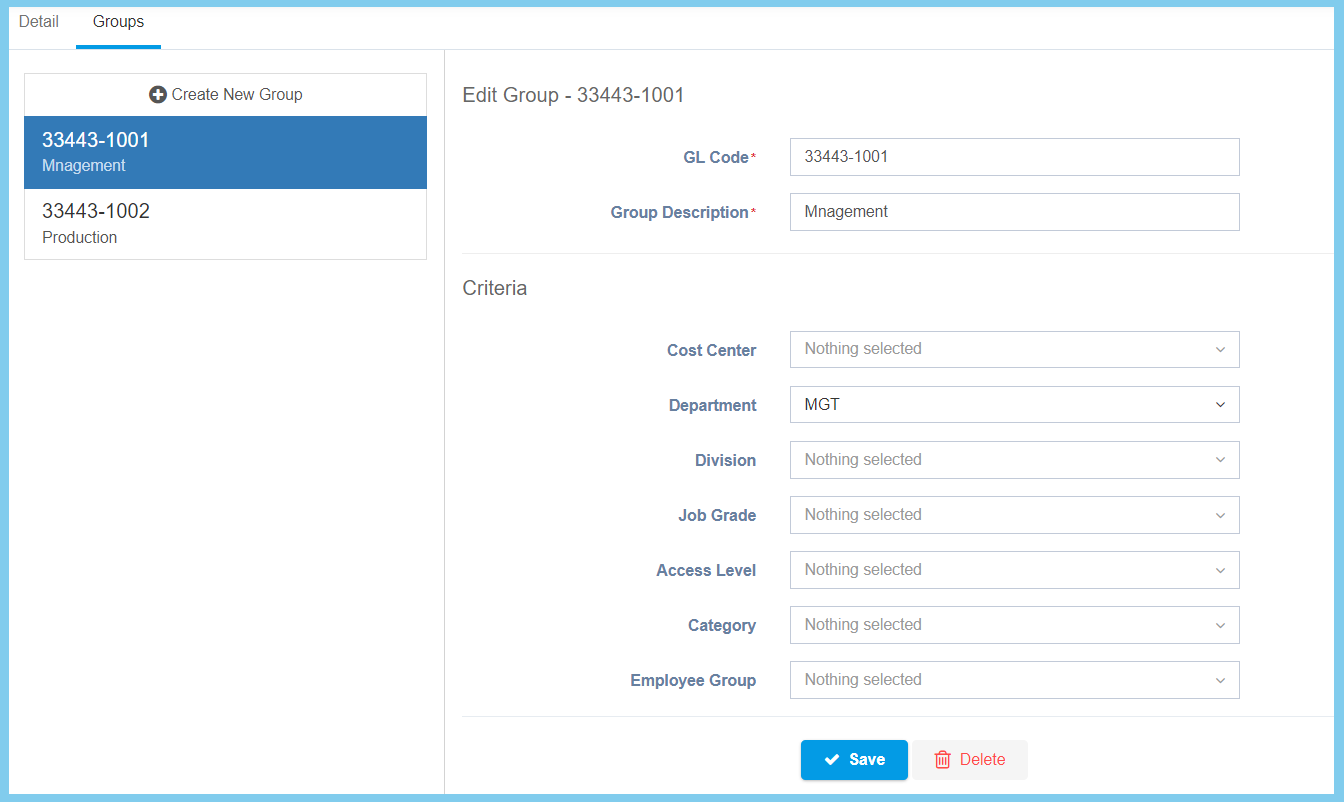
Edit GL Setting
a. Select the group that you to edit on the left box.
b. Edit the form.
c. Click Save button.
| Option | Allowed Values | Description |
|---|---|---|
| GL Code | Any alphanumeric | Set a simple and unique GL code for group. |
| Group Description | Any alphanumeric | Any description ab0ut this group. |
| Cost Center | Setup from code settings | To set the cost center by select from cost center option that available. |
| Department | Setup from code settings | To set the department by select from department option that available. |
| Division | Setup from code settings | To set the division by select from division option that available. |
| Job Grade | Setup from code settings | To set the job grade by select from job grade option that available. |
| Access Level | Setup from code settings | To set the access level by select from access level option that available. |
| Category | Setup from code settings | To set the category by select from category option that available. |
| Employee Group | Selection from employee group | To set the employee group by select from employee option that available. |
Note: Click here to view setup.
