
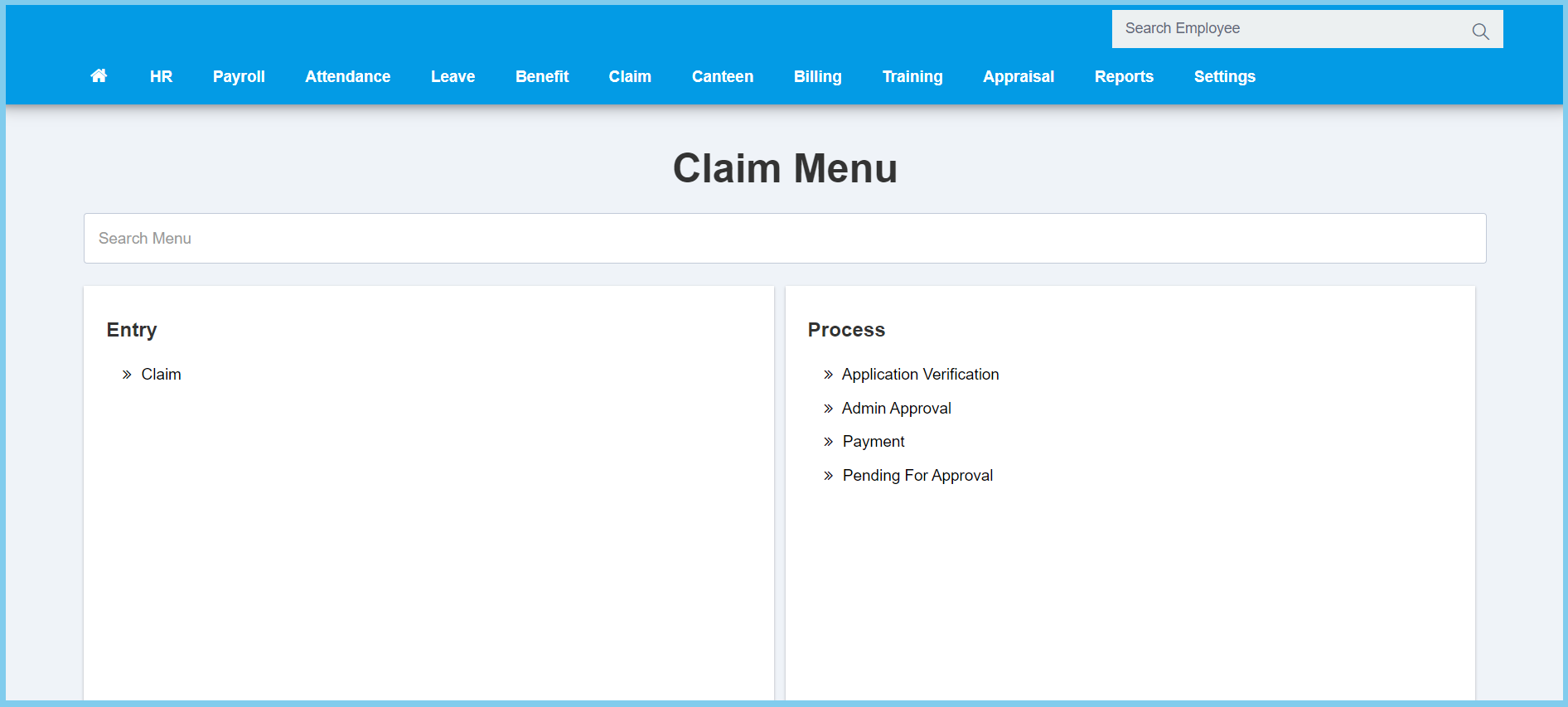
1. Menu: Click Claim.
2. Click Claim which located under Entry.
3. Complete the form.
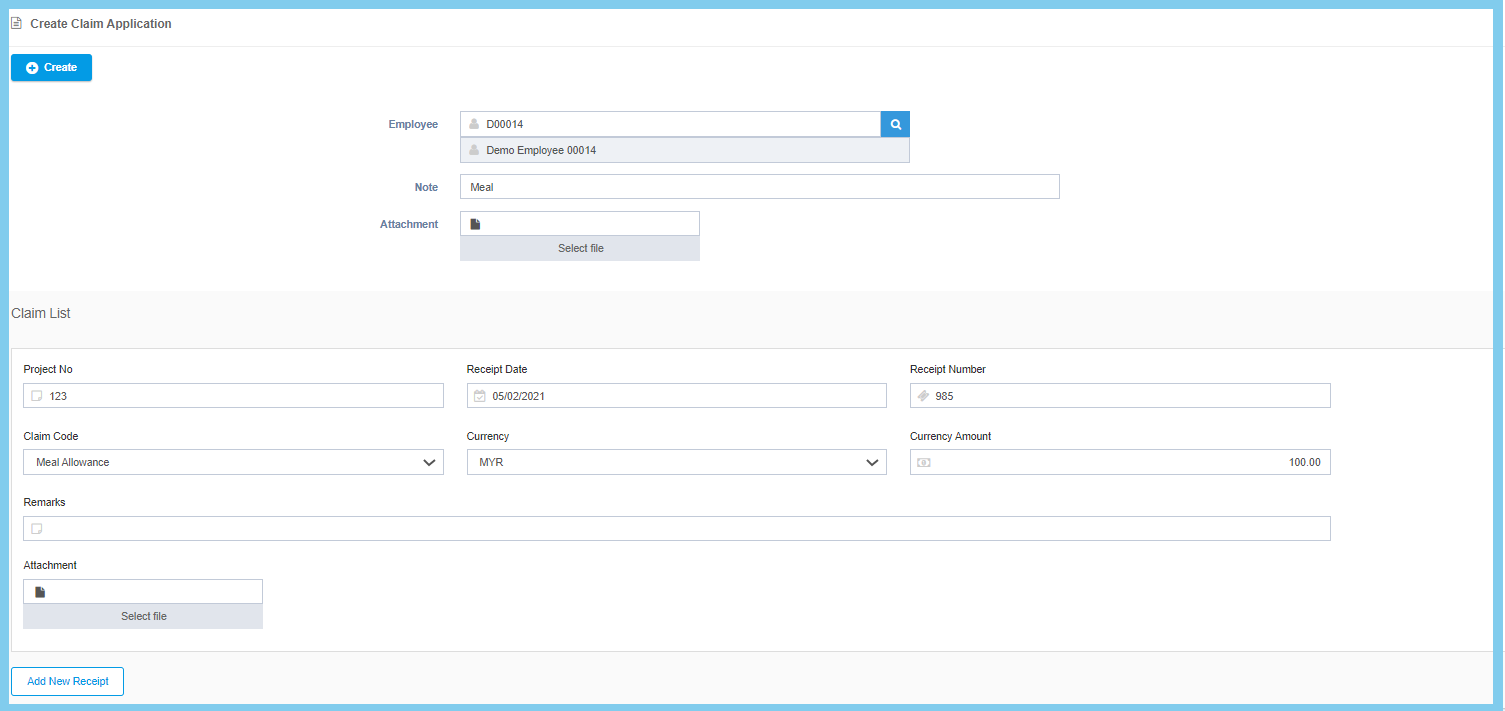
4. Click Create button.
Note: If you have more than one receipt need to claim at the same time, click the Add New Receipt button and complete the form.
Claim Applicaiton Configuration Option Explaination
| Option | Allowed Values | Description |
|---|---|---|
| Employee | Selection from employee list | Select an employee for claim application. |
| Note | Any alphanumeric | Any note about this new claim application. |
| Attachment | File path | Submit file for support to apply claim success. |
| Project No | Any number | Enter the ID number of the specific project for claim application |
| Receipt Date | Select date from calendar | Select the date of the receipt for submit a new claim application from calendar available. |
| Receipt Number | Any alphanumeric | Enter the receipt number in receipt that submit for new claim application. |
| Claim Code | Setup in claim code | Select the claim code from the option available.
Click here to view setup. |
| Currency | Setup in currency code | Select the currency from the option available.
Click here to view setup. |
| Currency Amount | Any number | Enter the amount of currency. |
| Remarks | Any alphanumeric | Any additional remarks about this new claim application. |
