
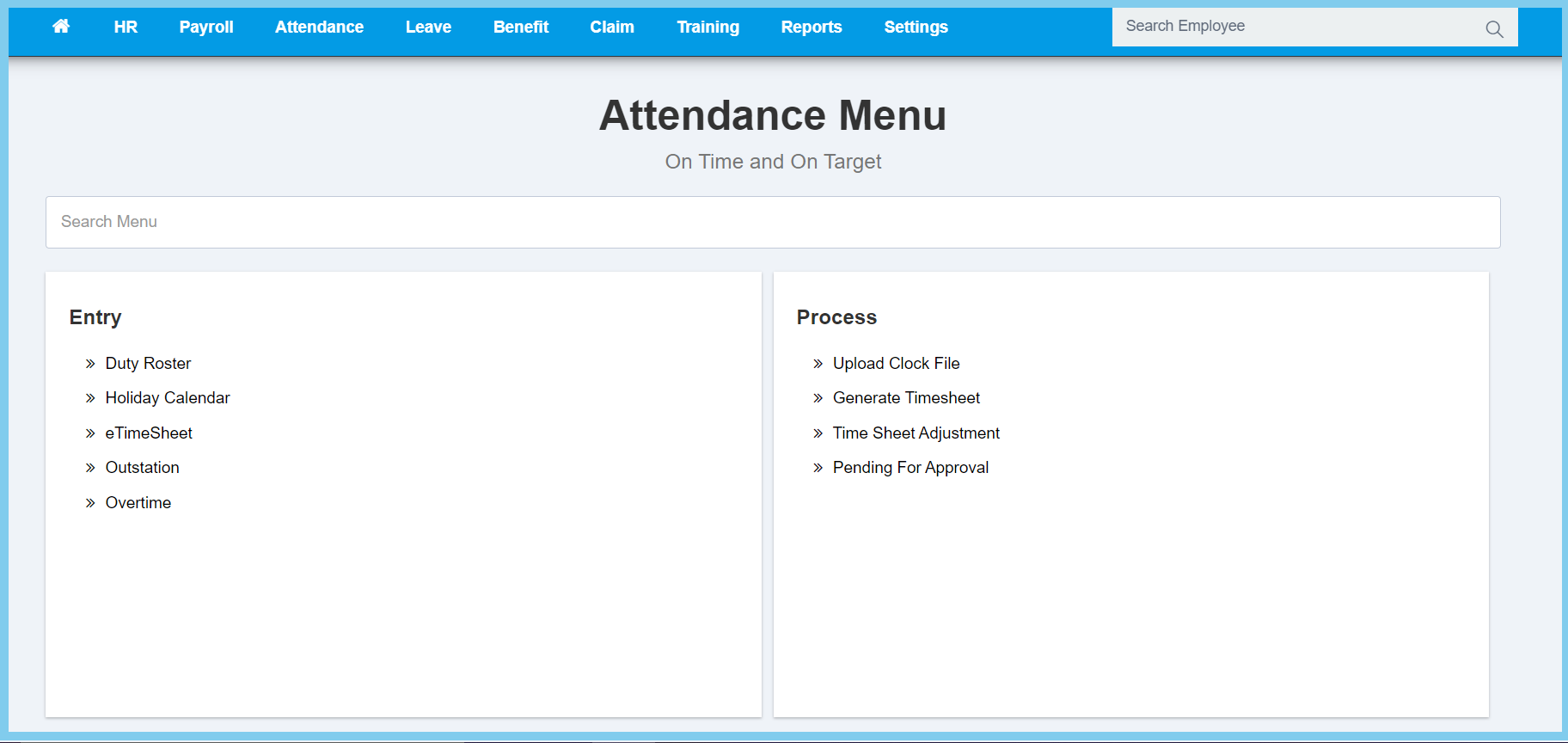
1. Menu: Click Attendance.
2. Click Generate Timesheet which located under Process.
3. Select date range or employee selection.
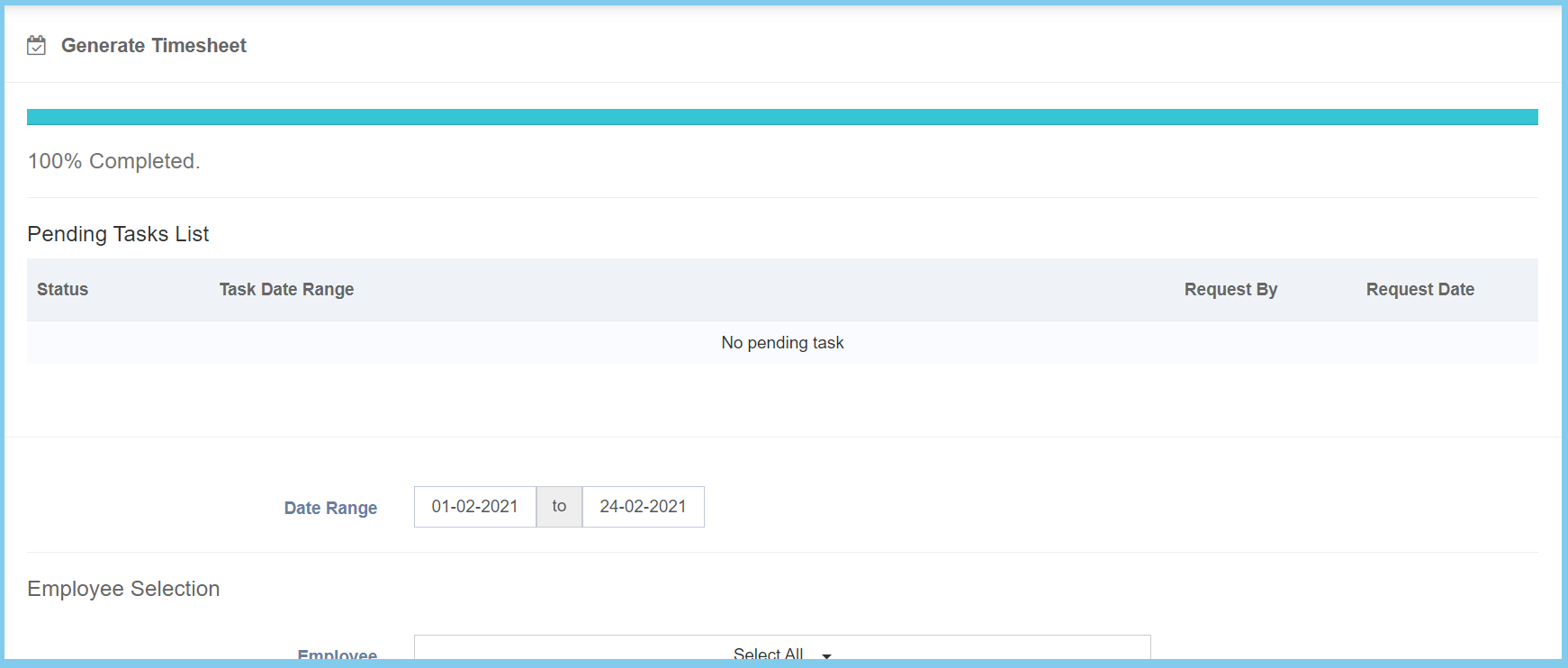
Note: Employee selection is a filter that allowed to search any selection that you wish.

4. Click Generate button.
5. Wait untill the progress bar is complete.

Advance Salary/Loan Configuration Option Explanation
Option Allowed Values Description
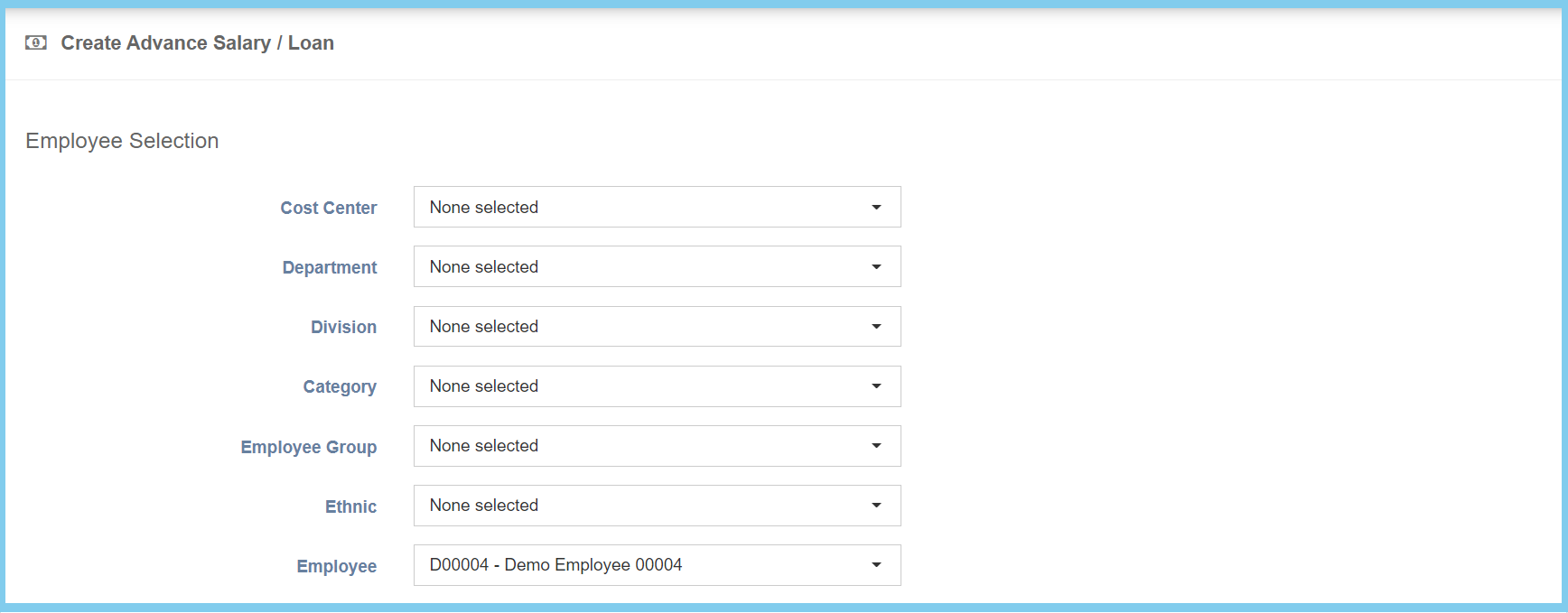
Employee Selection from employee Select the employee from option available. Can select more than one employee that you wish.
Cost Center Setup from cost center Select the cost center of employee from option available. Can select more than one cost center that you wish.

Click here to view setup.

Department Setup from department Select the department of employee from option available. Can select more than one department that you wish.

Click here to view setup.

Division Setup from code settings Select the division of employee from option available. Can select more than one division that you wish.

Click here to view setup for division.

Category Setup from code settings Select the category of employee from option available. Can select more than one category that you wish.

Click here to view setup for employee category.

Access Level Setup from access level Select the access level of employee from option available. Can select more than one access level that you wish.

Click here to view setup.

Employee Group Setup from employee group Select the employee group of employee from option available. Can select more than one employee group that you wish.

Click here to view setup.

Employement Status Selection from employment status Select the employment status of employee from option available. Can select more than one employement status that you wish.
Duty Roster Group Setup from dusty roster Select the duty roster group of employee from option available. Can select more than one duty roster group that you wish.

Click here to view setup.