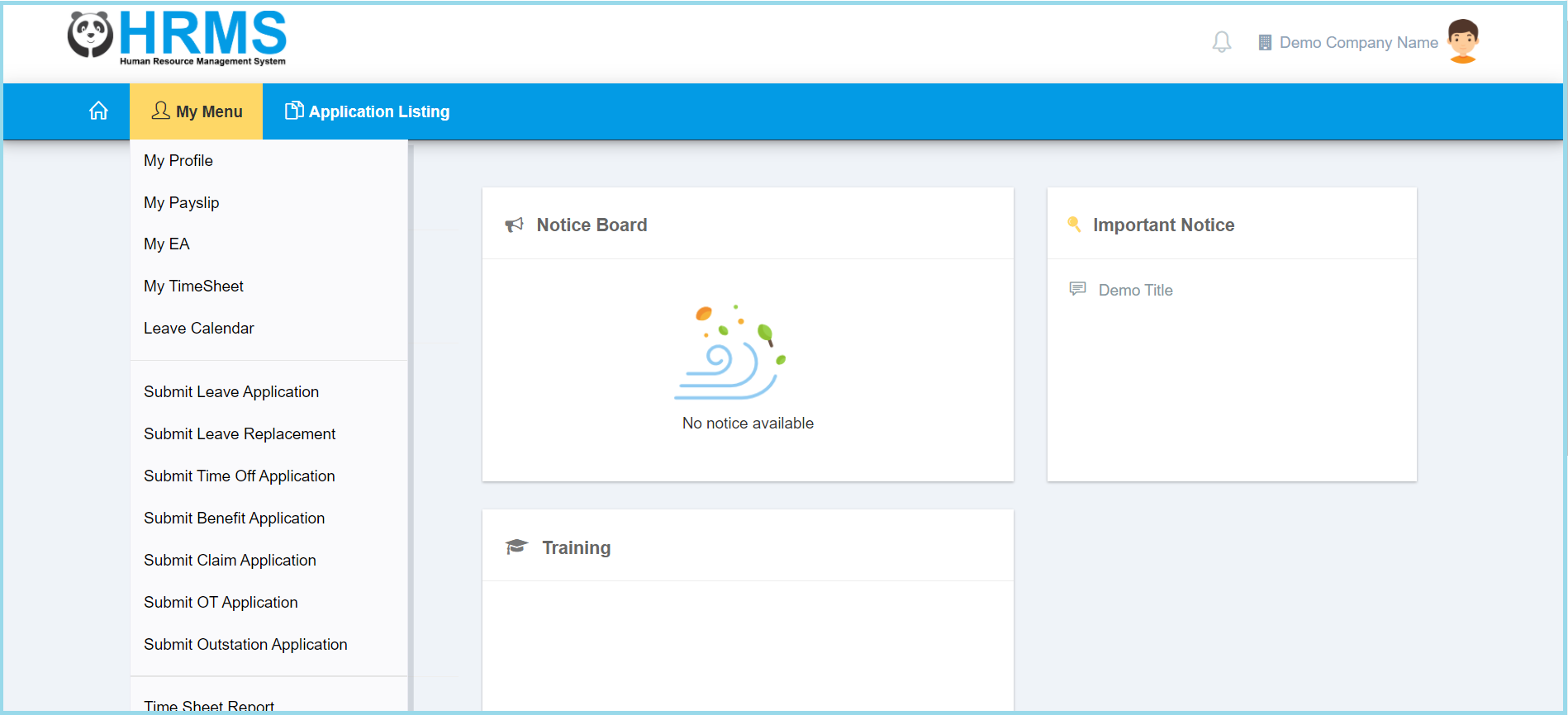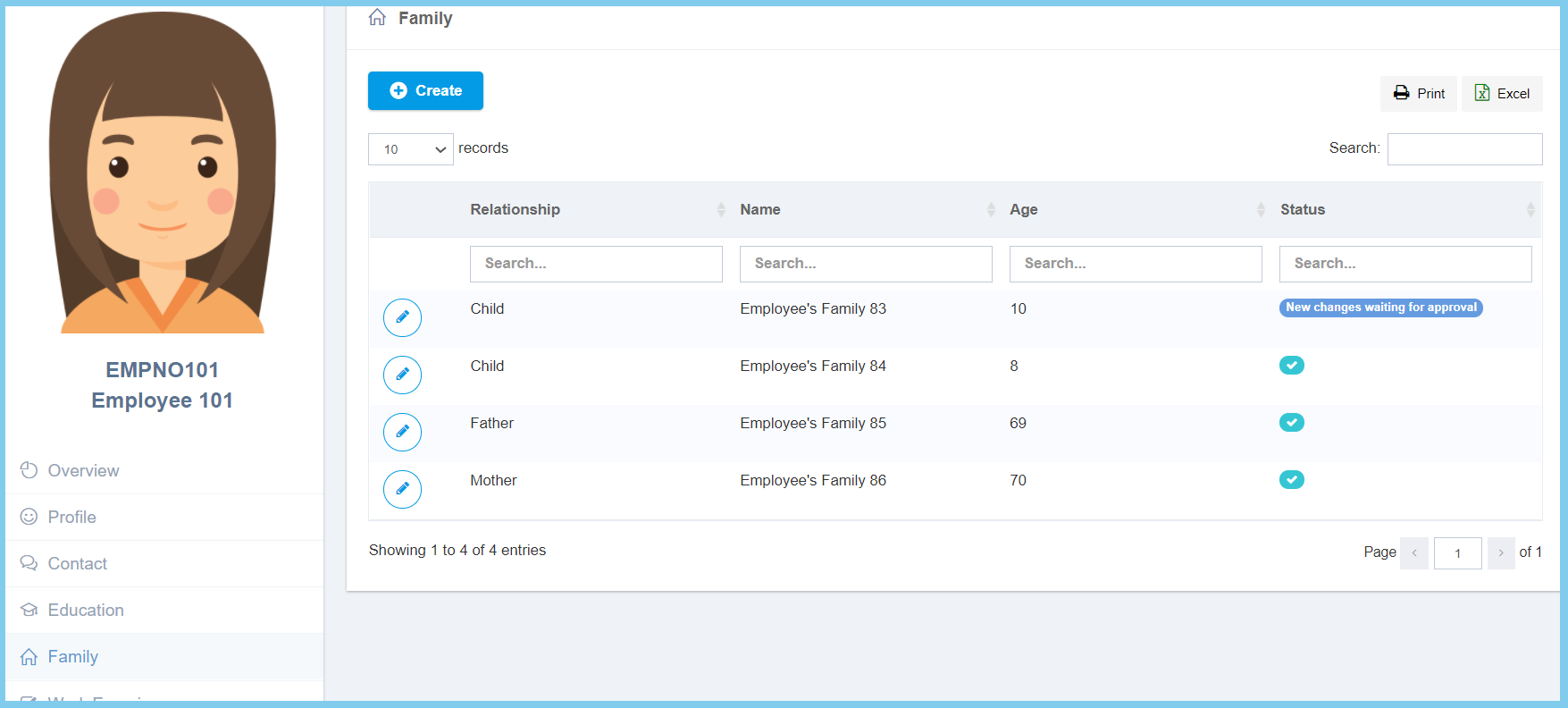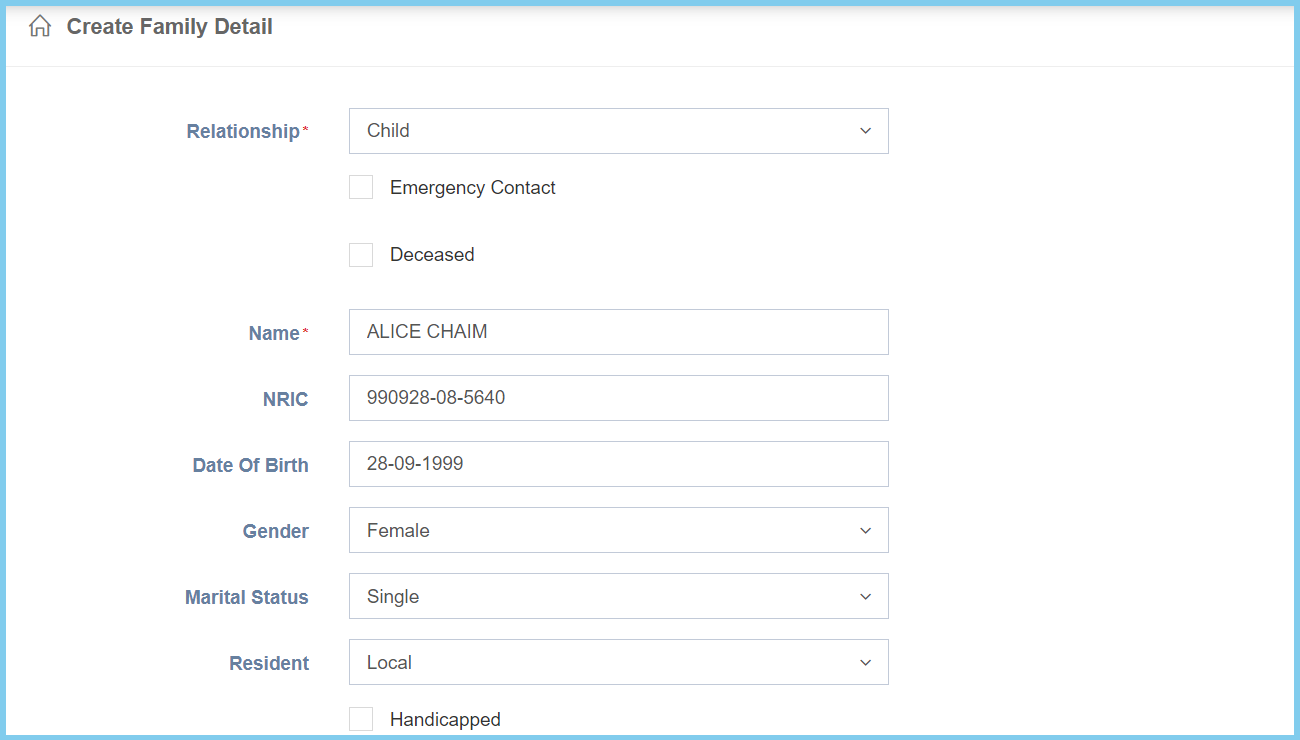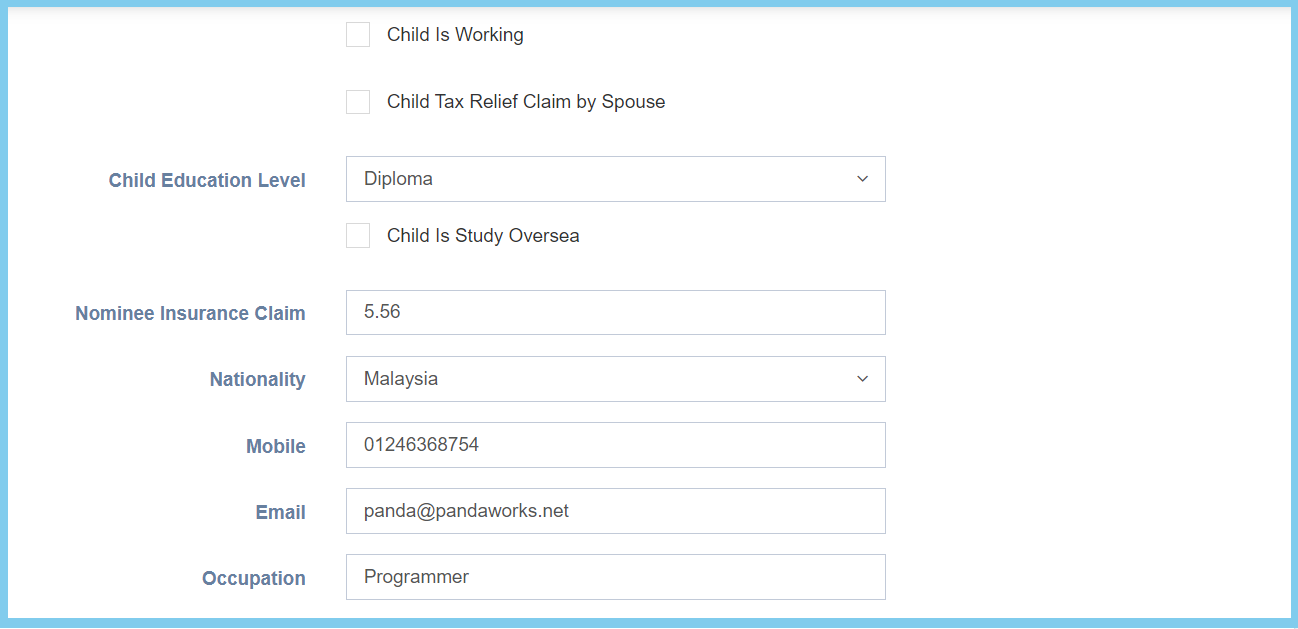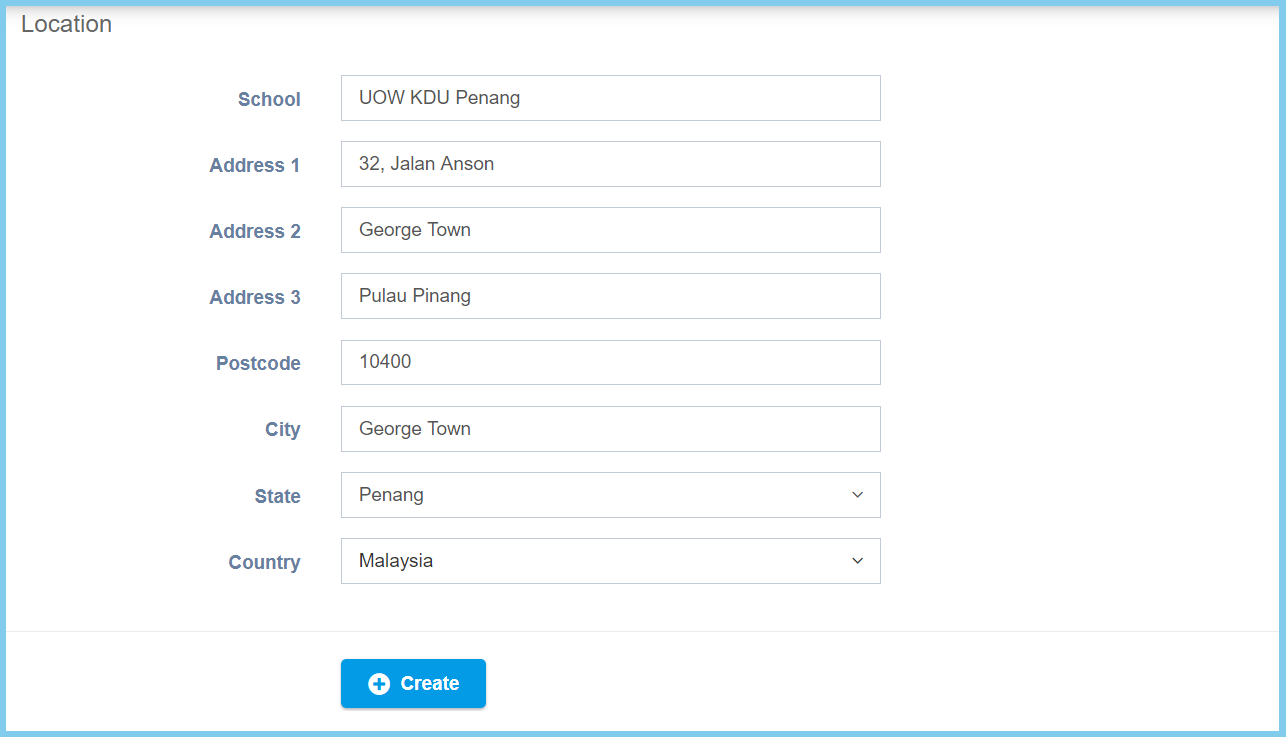
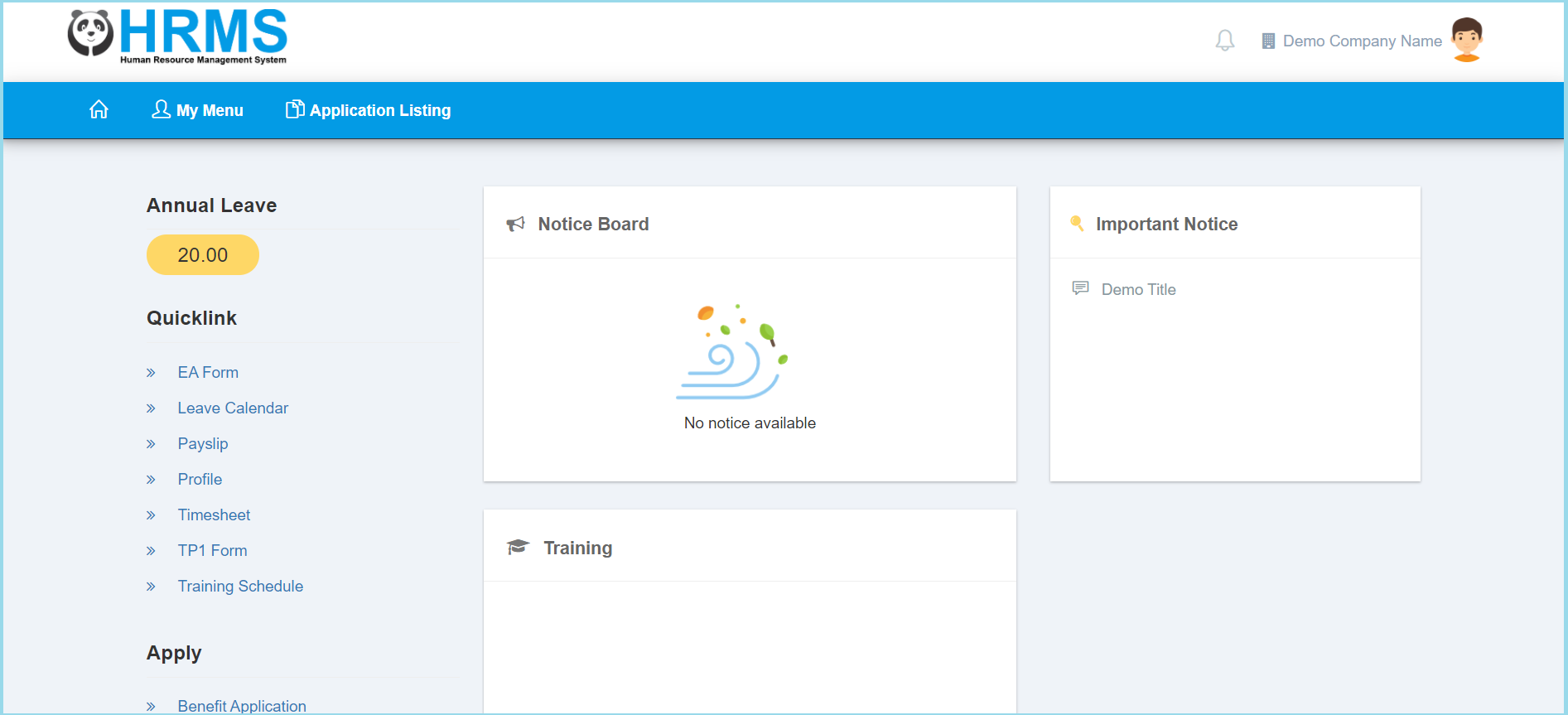
Employee: How Do I Create A New Family Profile? By support|2021-03-08T09:37:40+08:00March 8th, 2021|Education Hub, Employee Self Service, HR Hub|0 Comments 1. Click My Menu. 2. Click My Profile. 4. Click Family 3. Click Create button. 4. Fill the form. 5. Click Create button. Family Configuration Option Explaination Create Family Detail Option Allowed Values Description Relationship Selection from relationship Select the relationship between employee and this family member from option available. Emergency Contact True False If enabled, this family member is the emergency contact for the employee. Deceased True False If enabled, this family member is deceased. Name Any alphanumeric Enter the name for family member. NRIC Any number Enter the valid IC number of the family member. Date Of Birth Select date from calendar Select the date of birth for the family member from calendar available. Gender Male Female Select the family member gender from option available. Marital Status Divorced Married Single Widowed Select the family member marital status from option available. Resident Local Non Local Permanent Resident (PR) Select the family member resident from option available. Handicapped True False If enabled, the family member is handicapped. Show More Option Allowed Values Description Child Is Working True False If enabled, the child has other working now. Child Tax Relief Claim by Spouse True False If enabled, the child tax is relief claim by spouse. Child Education Level Selection from education level Select the child highest education level from option available. Child Is Study Oversea True False If enabled, the child is study oversea. Nominee Insurance Claim Any number Enter the percentage of the nominee insurance claim. Nationality Selection from nationality Select the nationality of the family member from option available. Mobile Any number Enter the valid family member phone number. Email Any alphanumeric with email format Enter the valid family member email. Occupation Any alphanumeric Enter the occupation of the family member. Location Option Allowed Values Description School Any alphanumeric Enter the name of school. Address 1 Any alphanumeric The first line of the address. Address 2 Any alphanumeric The second line of the address. Address 3 Any alphanumeric The third line of the address. Postcode Any number The postcode of the address. City Any alphanumeric The city that family member stay. State Selection from state Select the state that family member stay. Country Selection from country Select the country that family member stay. Note: This is for the selection from relationship which chosen Child. For the selection Spouse, there has another option which is Spouse Tax number. Spouse Tax number is to enter the tax number of the spouse. Share This Story, Choose Your Platform! FacebookTwitterRedditLinkedInWhatsAppTumblrPinterestVkEmail About the Author: support