
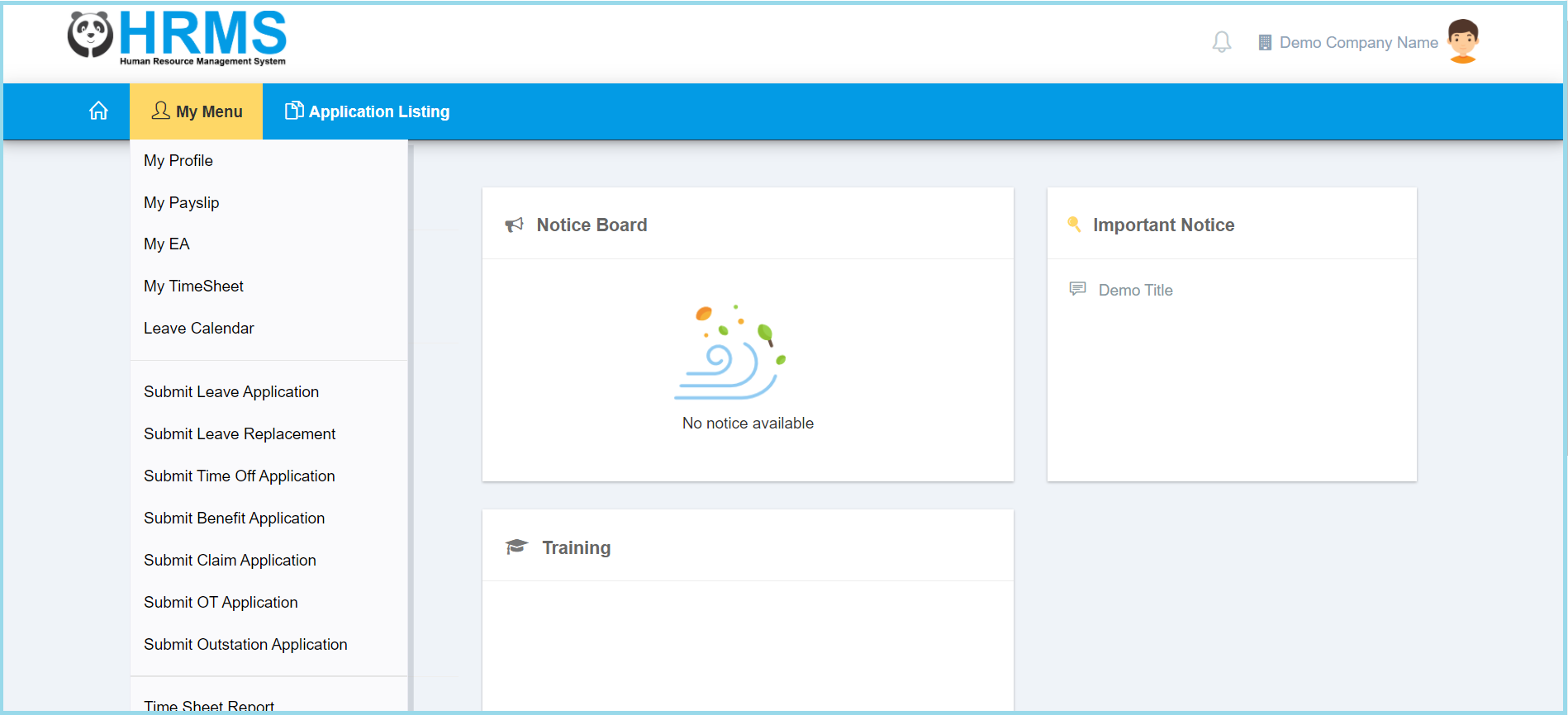
1. Click My Menu.
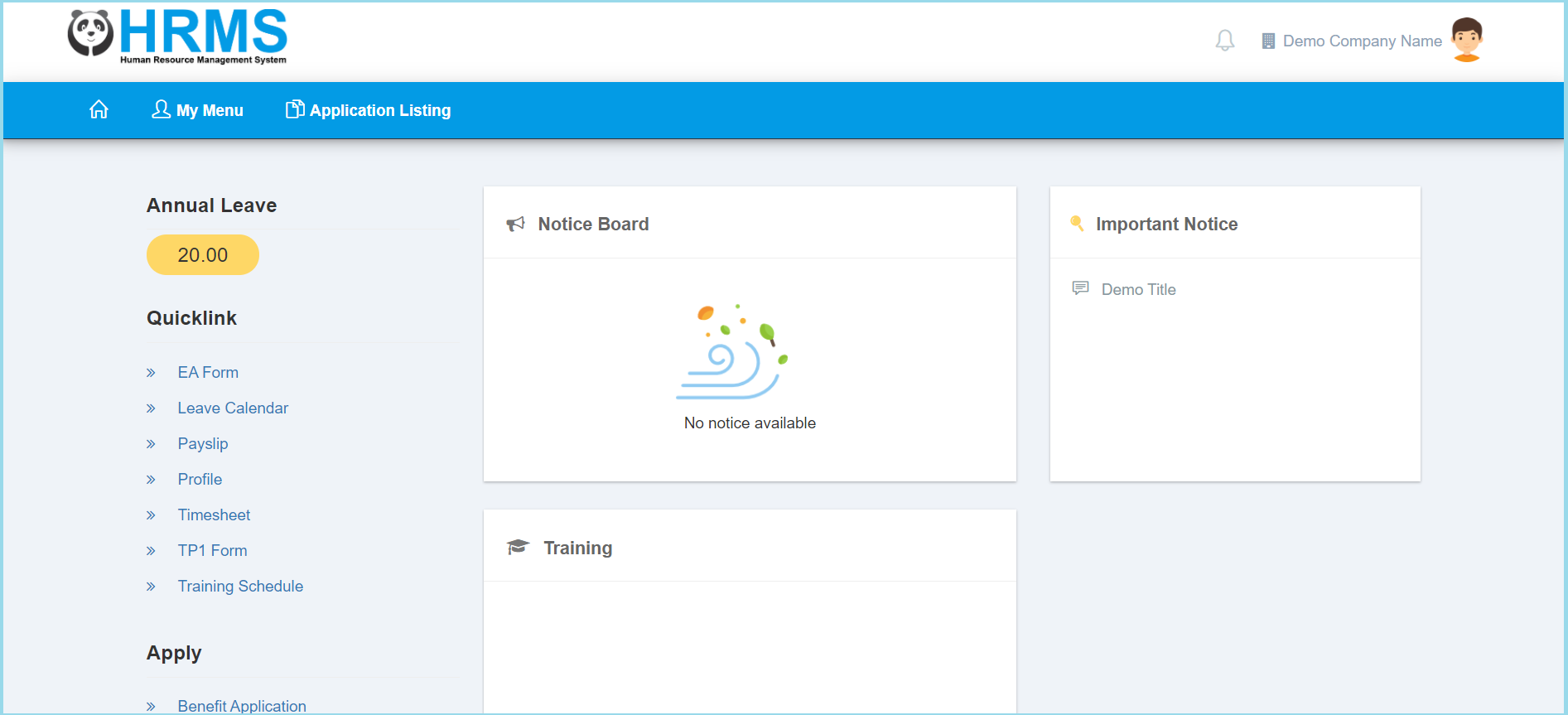
2. Click Submit Benefit Application.
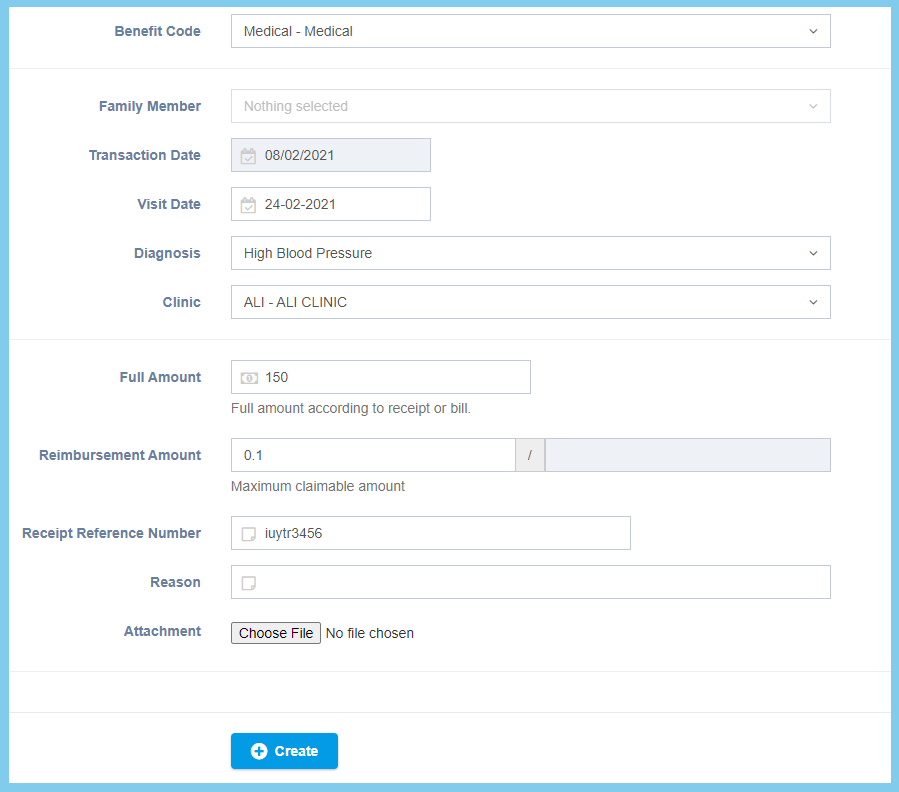
3. Fill the form.
4. Click Create button.
5. Click Submit button.

6. Wait for approval. Click here to learn how to view benefit application.
Benefit Application Configuration Option Explaination
| Option | Allowed Values | Description |
|---|---|---|
| Benefit Code | Selection from benefit code | Select the benefit code that is used for the application. |
| Family Member | Selection from family member | Select the family member that is benefited for the application from option available.
This configuration will show when the selection of benefit code is Share Family. |
| Transaction Date | Select date from calendar | Select the date when the applicant salary amount will be deducted from calendar available. |
| Visit Date | Select date from calendar | Select the date when the applicant visited the clinic from calendar available. |
| Diagnosis | Selection from diagnosis | Select the suitable diagnosis for the benefit application from option available. |
| Clinic | Selection from clinic profile | Select the clinic that the user has visited from option available. |
| Full Amount | Any number | Enter the full medical amount according to the receipt or bill. |
| Reimbursement Amount | Any number | Enter the value to be repaid to the applicant. |
| Receipt Reference Number | Any alphanumeric | Enter the receipt reference number. |
| Reason | Any alphanumeric | Mention the reason for visiting the clinic. |
| Attachment | File path/ image path | Attach the image or digital receipt as proof. |
