
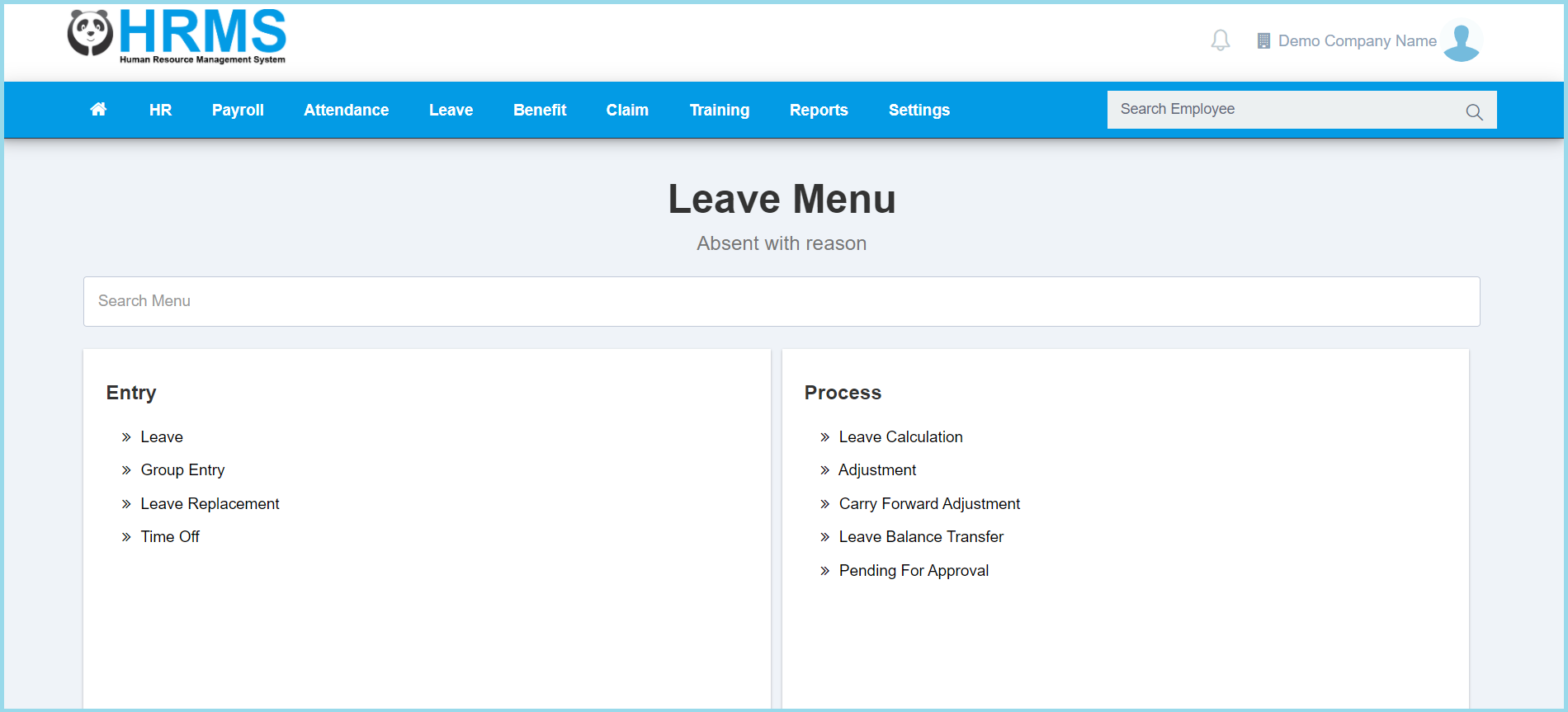
1. Menu: Click Leave.
2. Click Leave which located under Entry.
3. Select Employee on the left box.
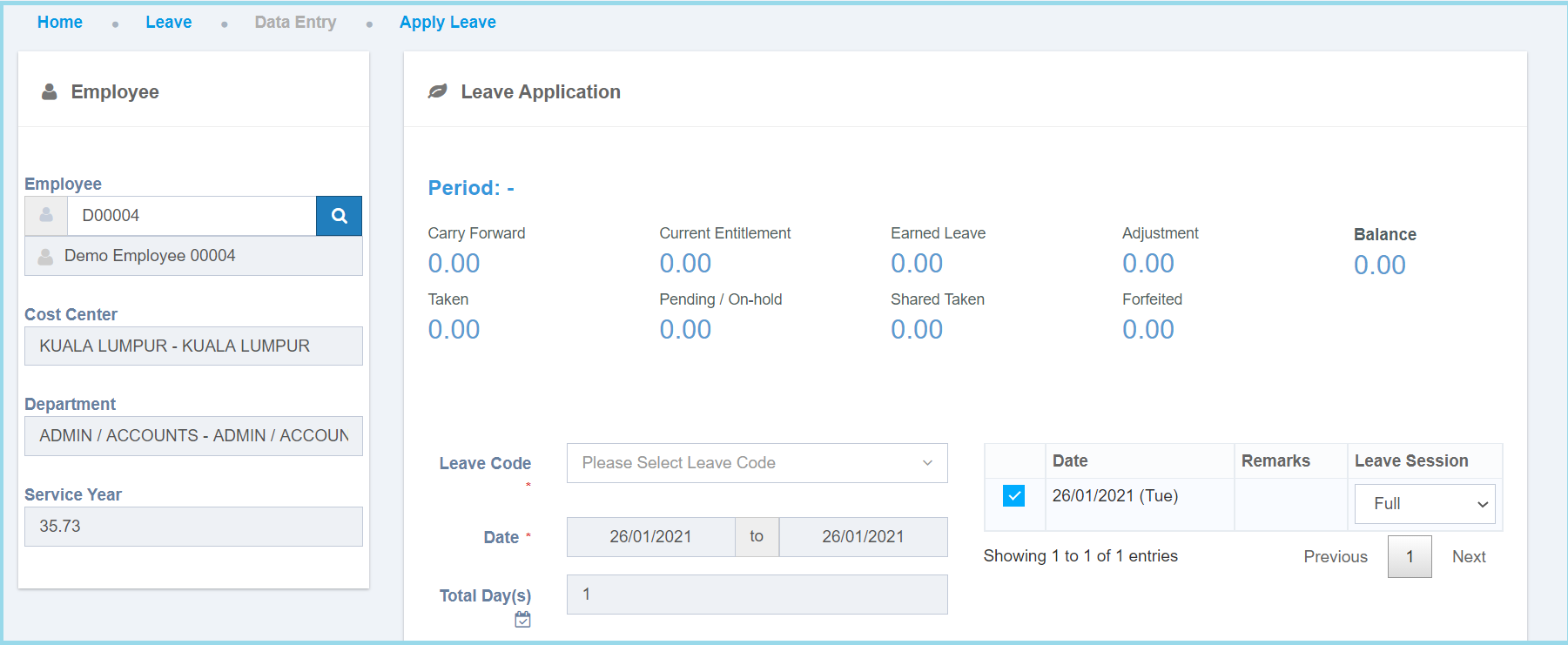
4. Fill up form.
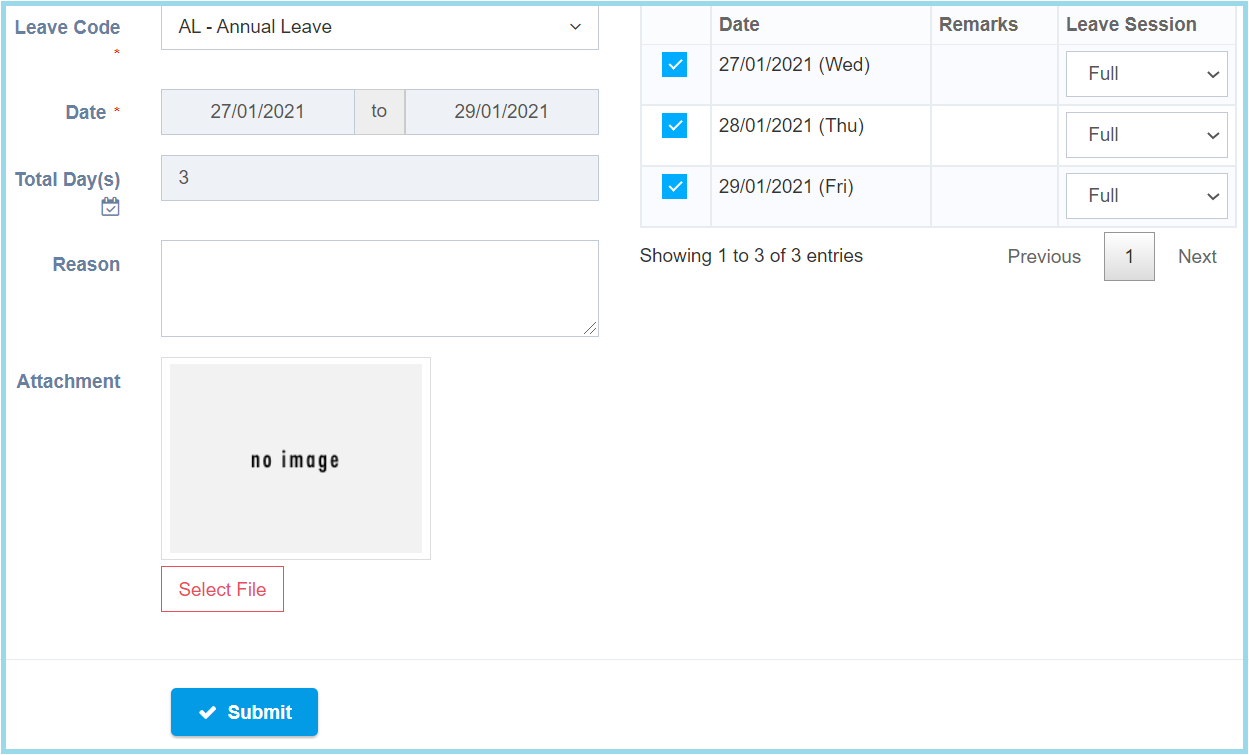
5. Click Submit button.
Note: Leave applied by admin will be automatically approved.
Leave Configuration Option Explanation
| Option | Allowed Values | Description |
|---|---|---|
| Leave Code | Selection from leave code | To select any leave code which want to apply by this employee.
Click here to view setup. |
| Date | Select date from calendar | Select start date and end date to apply leave from the calendar available. |
| Total Day(s) | Not specified | This will be automatic show the total days based from the date selected. |
| Reason | Any alphanumeric | Enter any reason for what a purpose to take a leave. |
| Attachment | File path | Upload file for support to apply leave success. |
- Carry Forward: The leave that has been carry forwarded. For Example, If this year has left 5 leave haven’t apply, it can be carry forward to next year.
- Current Entitlement: The total entitlement leave that employee get.
- Earned Leave: The entitlement leave that employee earned.
- Adjustment: The adjustment of the leave.
- Taken: The leave that applied by employee.
- Pending / On-Hold: The leave that haven’t approved by admin or approval.
- Shared Taken: The combination of leave. For example, the total Hopitalization leave and Sick leave will show in shared taken.
- Forfeited: The leave that has been forfeited when the employee didn’t apply the leave before a effective period by month.
