
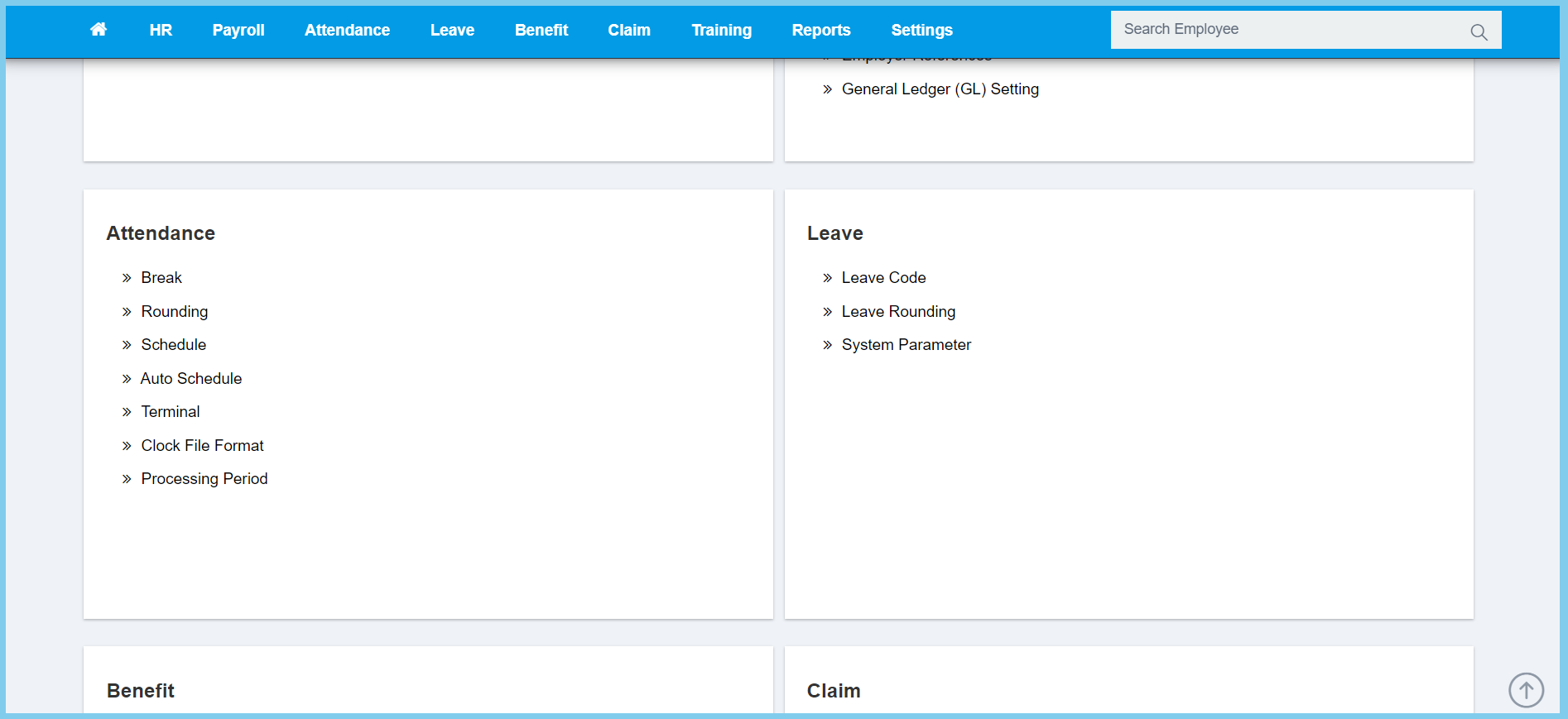
1. Menu: Click Settings.
2. Click Clock File Format which located under Attendance.
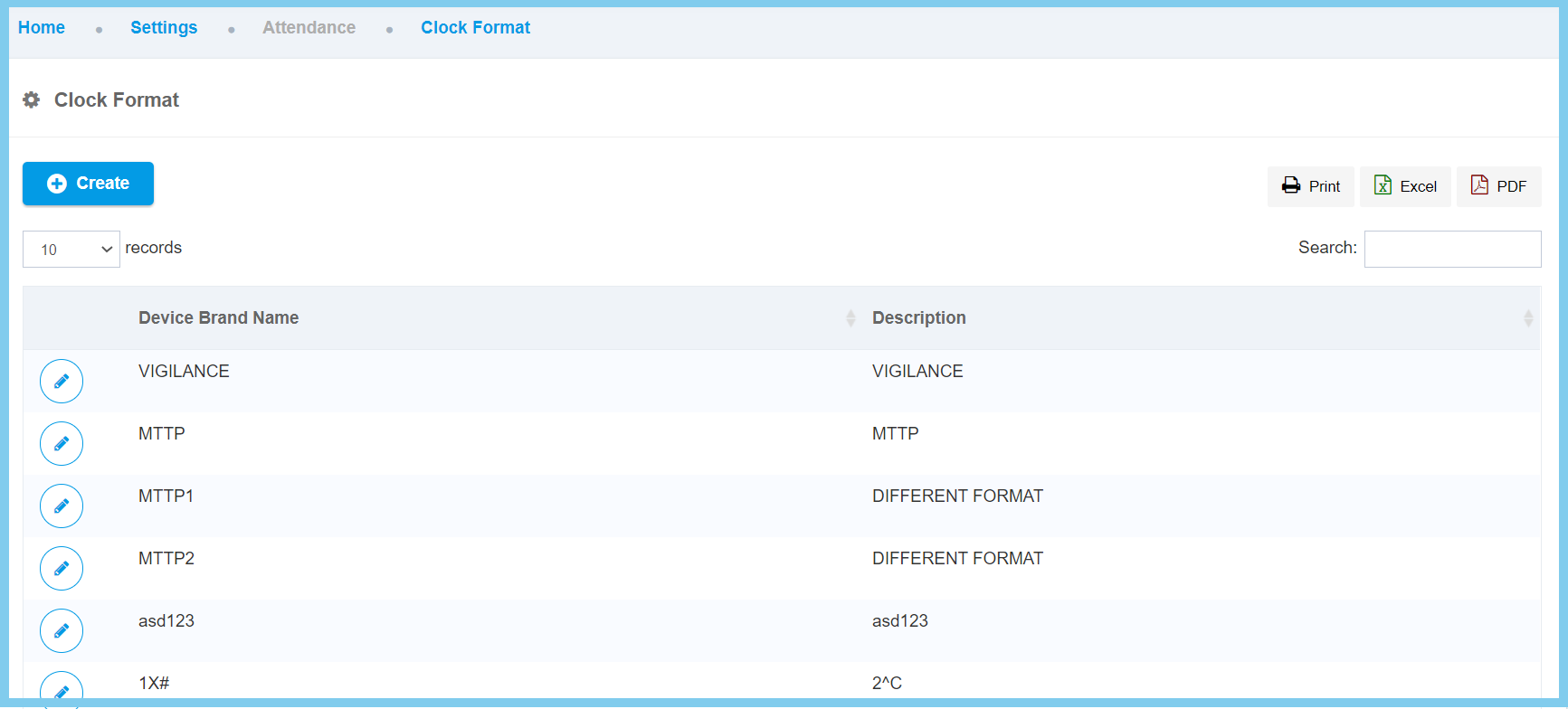
3. Click Create button.
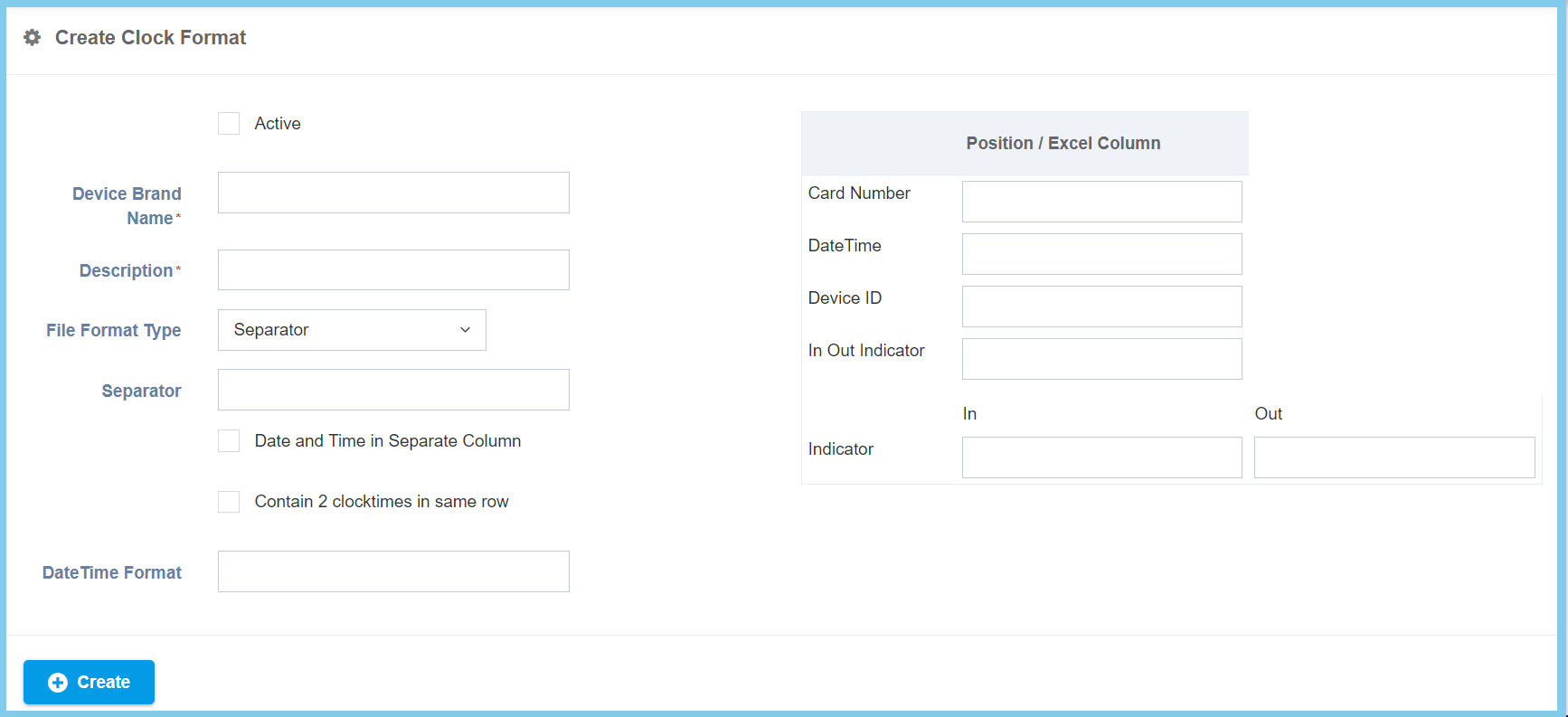
4. Fill the form.
Note: There has 3 types of clock file form.
| Option | Allowed Values | Description |
|---|---|---|
| Active |
|
Set for the clock device its status now is active or not. |
| Device Brand Name | Any alphanumeric | To set up for the particular clock device brand name. |
| Description | Any alphanumeric | Any description about this clock device. |
| File Format Type |
|
To choose which of the three type clock file format to be upload it either in excel, fix position or separator. |
| Date and Time in Separate Column |
|
Apply this option to separate date and time in different column. |
| Contain 2 clocktimes in same row |
|
Apply this option to allow have two clocktimes contain in same row. |
| Date Time Format | Any number | To set up a datetime format. |
| Card Number | Any number | To set up employee card number position. |
| DateTime | Any number | To set up datetime position. |
| Device ID | Any number | To set up device ID position. |
| In Out Indicator | Any number | To set up indicator position. |
| Indicator (In) | Any number | Specify a symbol that will be used to indicate the time in. |
| Indicator (Out) | Any number | Specify a symbol that will be used to indicate the time out. |
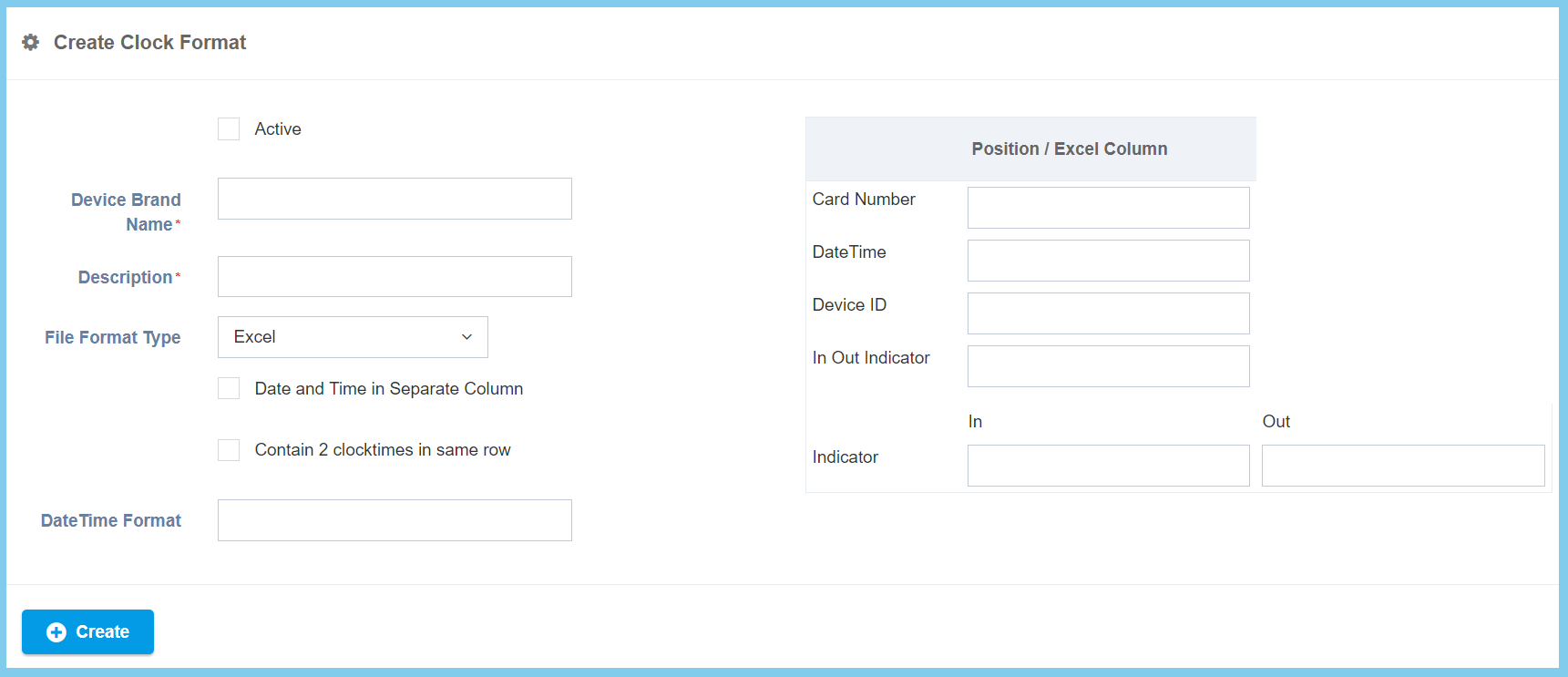
| Option | Allowed Values | Description |
|---|---|---|
| Active |
|
Set for the clock device its status now is active or not. |
| Device Brand Name | Any alphanumeric | To set up for the particular clock device brand name. |
| Description | Any alphanumeric | Any description about this clock device. |
| File Format Type |
|
To choose which of the three type clock file format to be upload it either in excel, fix position or separator. |
| Contain 2 clocktimes in same row |
|
Apply this option to allow have two clocktimes contain in same row. |
| Card Number(start) | Any number | To set up employee card number position. |
| Card Number(length) | Any number | To set how long the duration of card number. |
| Year(Start) | Any number | Tto set up year position. |
| Year(Length) | Any number | To set how many index of year. |
| Month(Start) | Any number | To set up month position. |
| Month(Length) | Any number | To set how many index of month. |
| Day(Start) | Any number | To set up day position. |
| Day(Length) | Any number | To set how many index of day. |
| Hour(Start) | Any number | To set up hour position. |
| Hour(Length) | Any number | To set how many index of hour. |
| Minute(Start) | Any number | To set up minute position. |
| Minute(Length) | Any number | To set how many index of minute. |
| Device ID(Start) | Any number | To set up device ID position. |
| Device ID(Length) | Any number | To set how many indexof device ID. |
| In Out Indicator(Start) | Any number | To set up indicator position. |
| In Out Indicator(Length) | Any number | To set how many index of indicator. |
| Indicator(In) | Any number | Specify a symbol that will be used to indicate the time in. |
| Indicator(Out) | Any number | Specify a symbol that will be used to indicate the time out. |
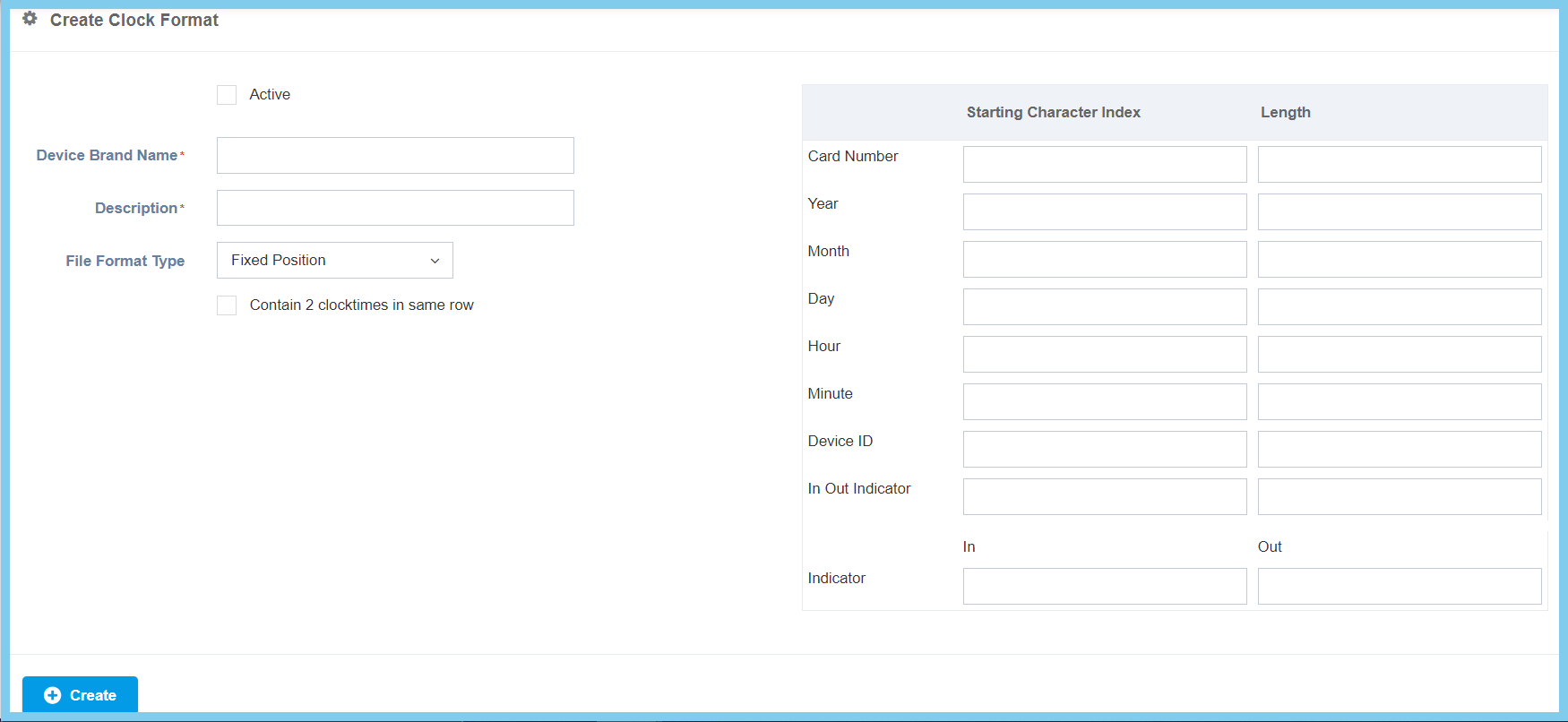
| Option | Allowed Values | Description |
|---|---|---|
| Active |
|
Set for the clock device its status now is active or not. |
| Device Brand Name | Any alphanumeric | To set up for the particular clock device brand name. |
| Description | Any alphanumeric | Any description about this clock device. |
| File Format Type |
|
To choose which of the three type clock file format to be upload it either in excel, fix position or separator. |
| Separator | Any alphanumeric | To indicate the symbol that separates the time raw data to show hour and minutes. |
| Date and Time in Separate Column |
|
Apply this option to separate date and time in different column. |
| Contain 2 clocktimes in same row |
|
Apply this option to allow have two clocktimes contain in same row. |
| Date Time Format | Any number | To set up a datetime format. |
| Card Number | Any number | To set up employee card number position. |
| DateTime | Any number | To set up datetime position. |
| Device ID | Any number | To set up device ID position. |
| In Out Indicator | Any number | To set up indicator position. |
| Indicator (In) | Any number | Specify a symbol that will be used to indicate the time in. |
| Indicator (Out) | Any number | Specify a symbol that will be used to indicate the time out. |
5. Click Save button.
