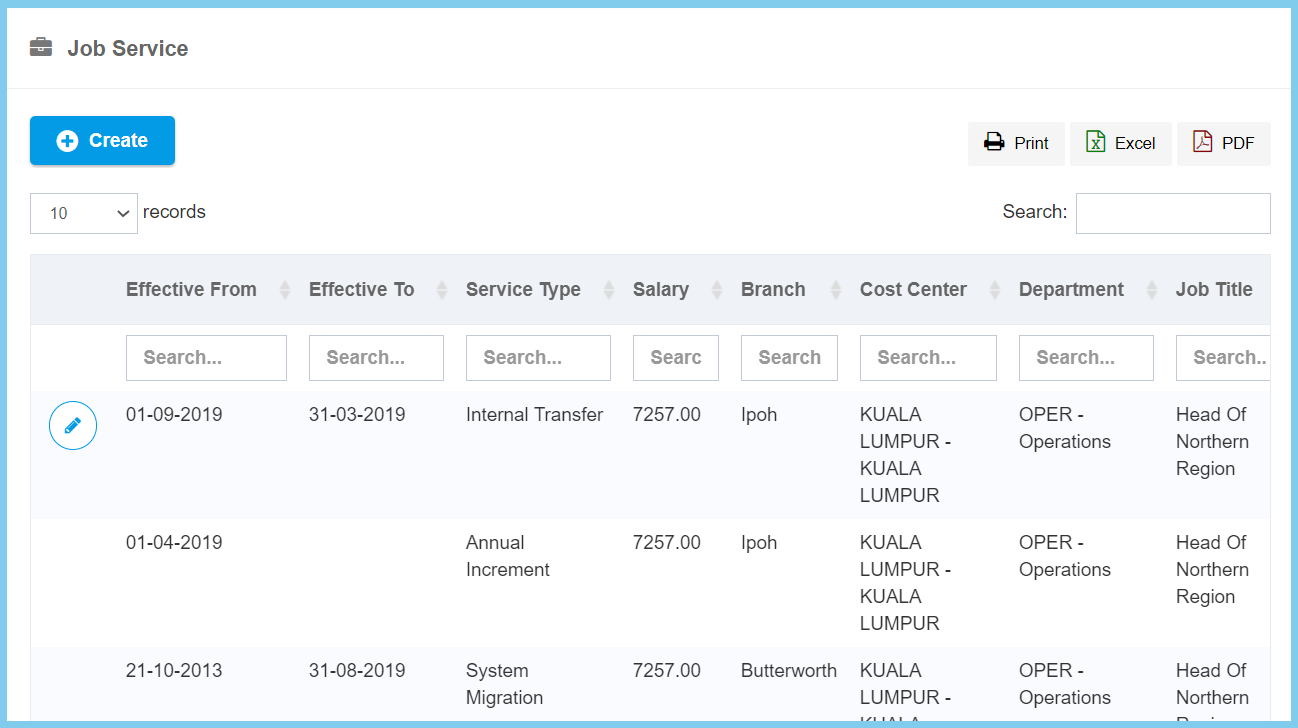
1. Edit Employee Profile.
2. Click Job Service.
3. Click Create button.
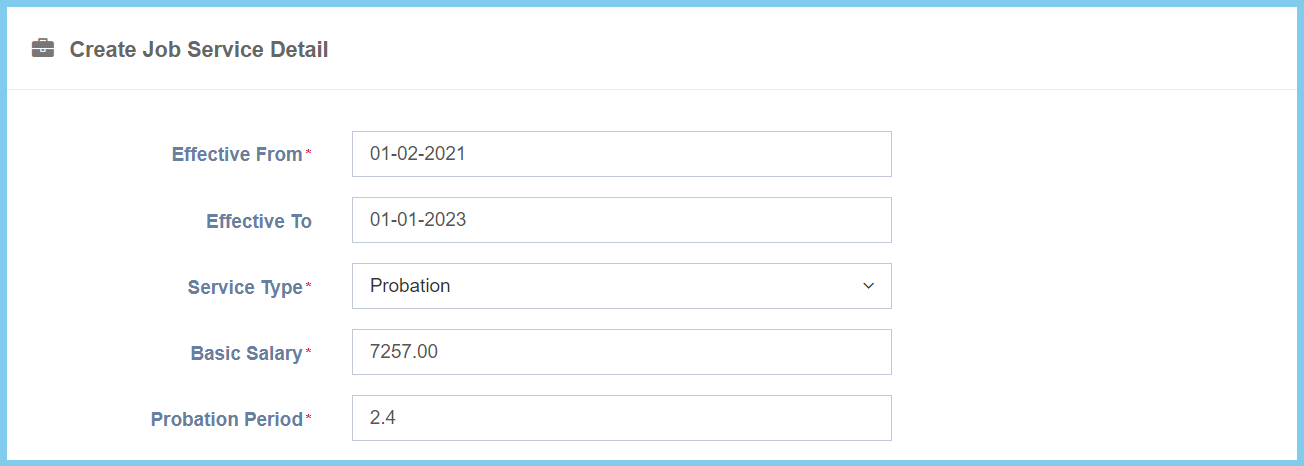
4. Fill the form.
5. Click Create button.
Job Service Configuration Option Explaination
| Option | Allowed Values | Description |
|---|---|---|
| Effective From | Select date from calendar | Select the effective start date of job service with this employee from calendar available. |
| Effective To | Select date from calendar | Select the effective end date of job service with this employee from calendar available. |
| Service Type | Setup from code settings | Select the type of service for employee from option available.
Click here to view setup for salary service type. |
| Basic Salary | Any number | Enter the basic salary for employee. |
| Probation Period | Any number | Enter the period probation for employee. |
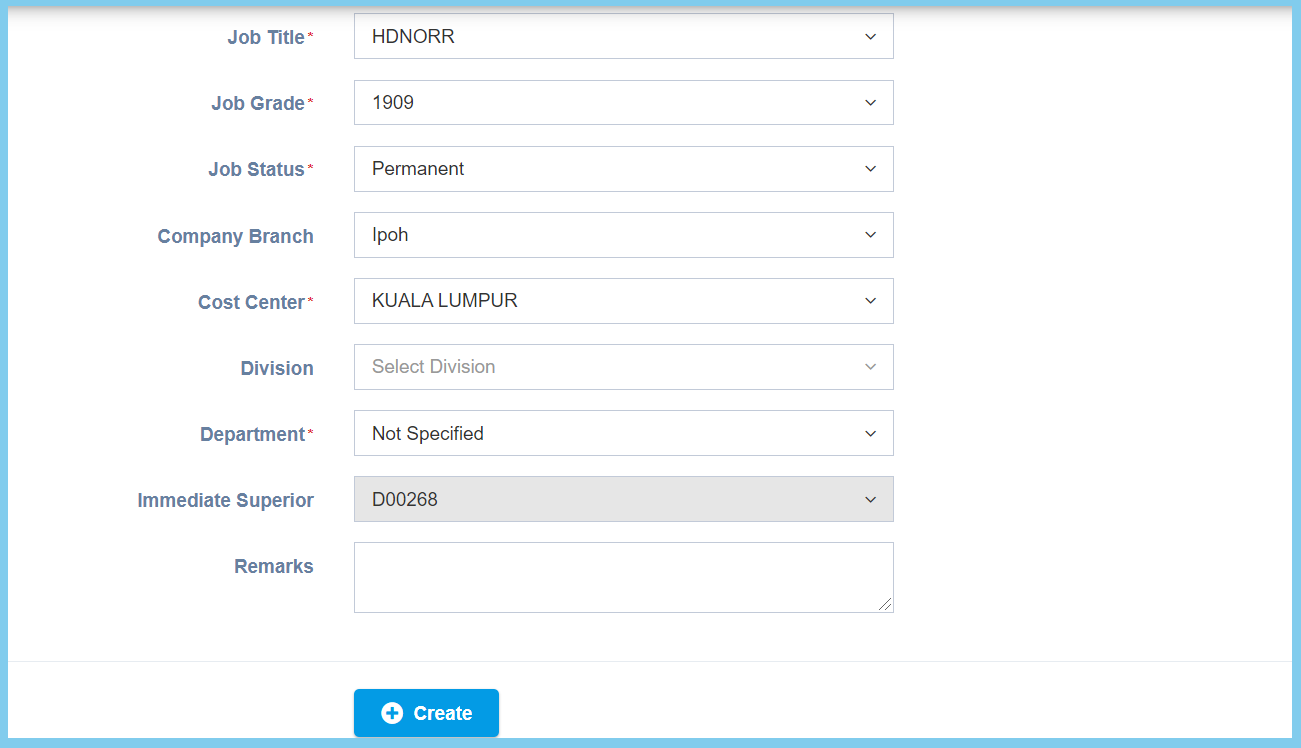
| Option | Allowed Values | Description |
|---|---|---|
| Job Title | Setup from code settings | Select the job title for employee from option available.
Click here to view setup for job title. |
| Job Grade | Setup from code settings | Select the job grade for employee from option available.
Click here to view setup for job grade. |
| Job Status |
|
Select the job status for employee from option available. |
| Company Branch | Setup from code settings | Select the employee company branch from option available.
Click here to view setup for company branch. |
| Cost Center | Setup from cost center | Select the cost center for employee from option available.
Click here to view setup. |
| Division | Setup from code settings | Select the division for employee from option available.
Click here to view setup for division. |
| Department | Setup from department | Select the department for employee from option available.
Click here to view setup. |
| Immediate Superior | Selection from immediate superior | Select the immediate superior for employee from option available. |
| Remarks | Any alphanumeric | Any additional remarks about this job service. |