
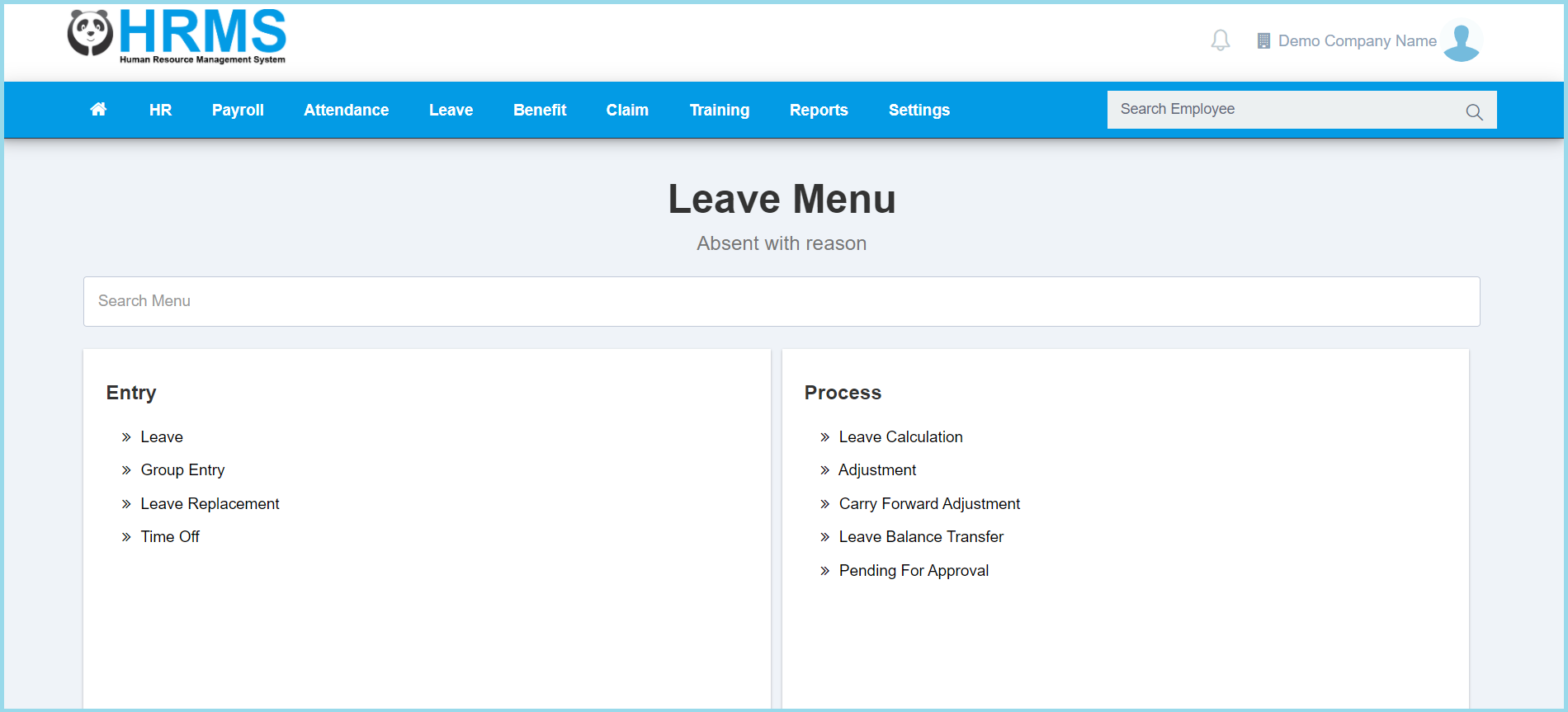
1. Menu: Click Leave.
2. Click Leave Replacement which located under Entry.
3. Click Create button.
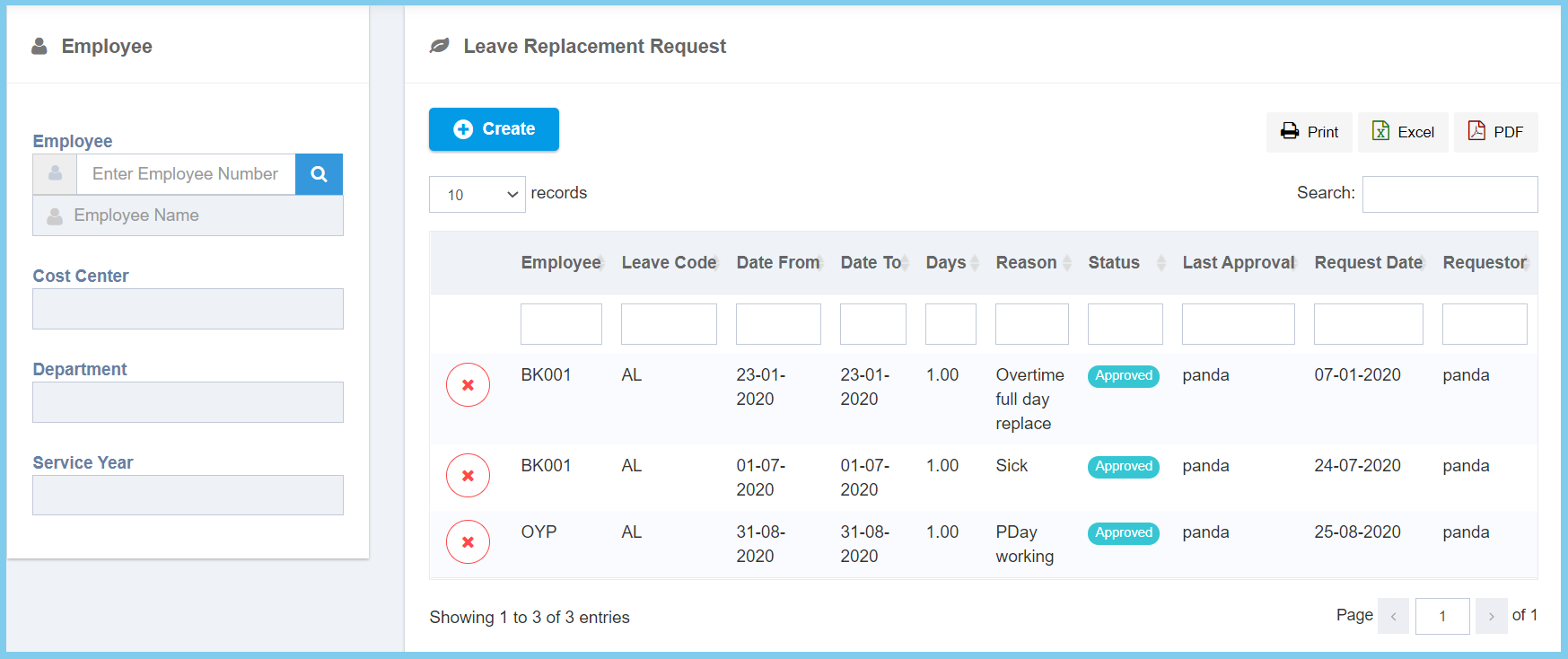
Note: The employee on the left box is allowed to search specific employee to view his/her leave replacement request by enter employee number or click search icon to select employee from employee list.
4. Enter employee number or click search icon to select employee from employee list.
5. Complete the form.
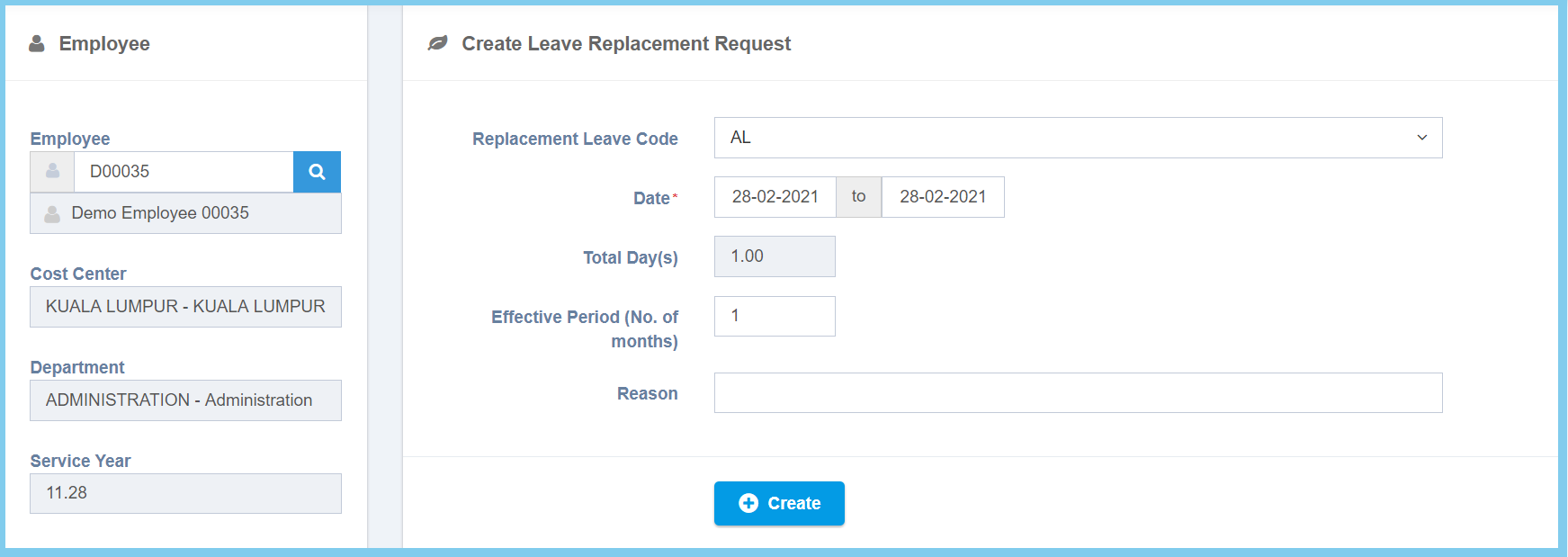
6. Click Create button.
Leave Replacement Configuration Option Explanation
| Option | Allowed Values | Description |
|---|---|---|
| Replacement Leave Code | Setup from leave code | Select the code for leave replacement from option available.
Click here to view setup. |
| Date | Select date from calendar | Select the start sate and end date of replacement leave from calendar available. |
| Total Day(s) | Not specified | Automatically show the total days of leave replacement. |
| Effective Period(No. of months) | Any number | Enter the effective period of leave replacement by number of month.
The value must greater or equal to 1. |
| Reason | Any alphanumeric | Any reason about this leave replacement. |
