
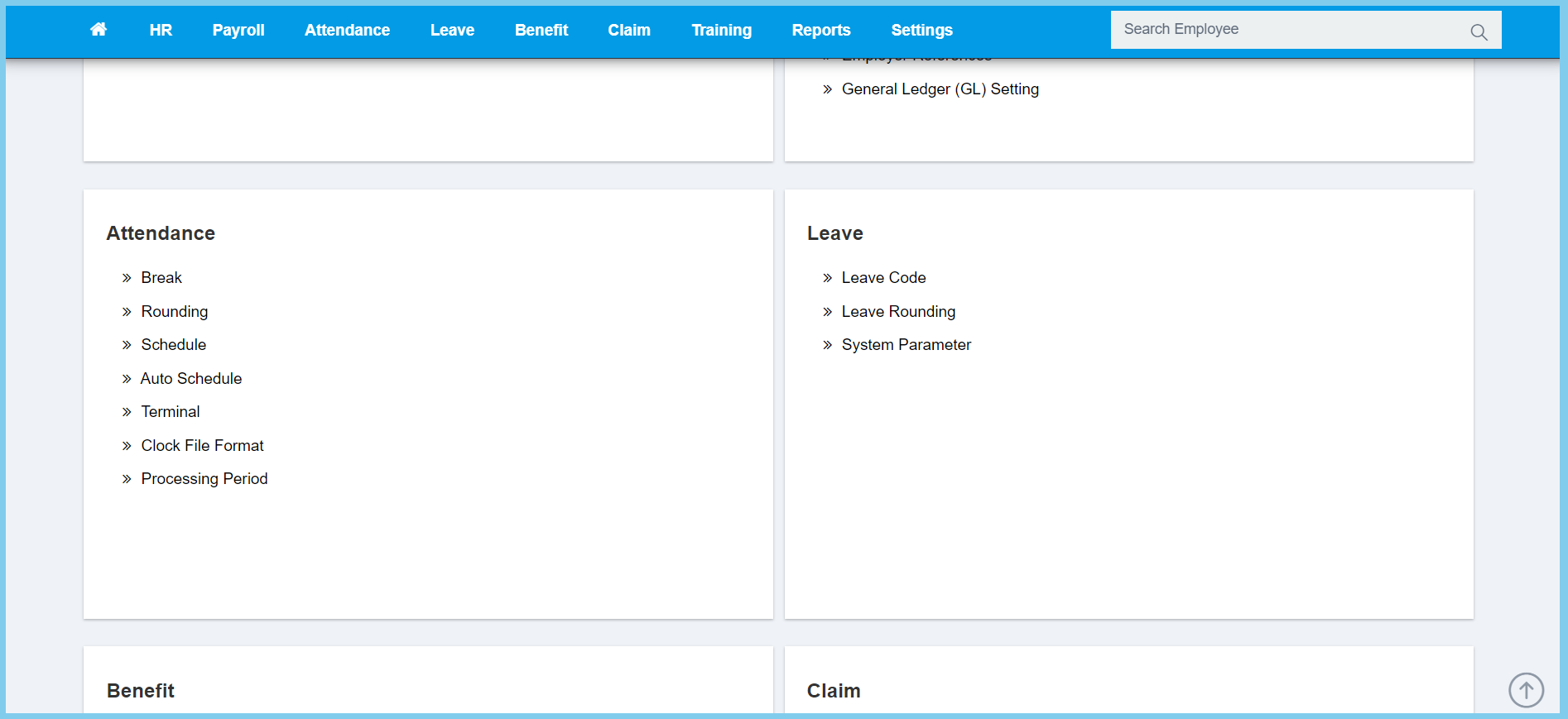
1. Menu: Click Settings.
2. Click Break which located under Attendance.
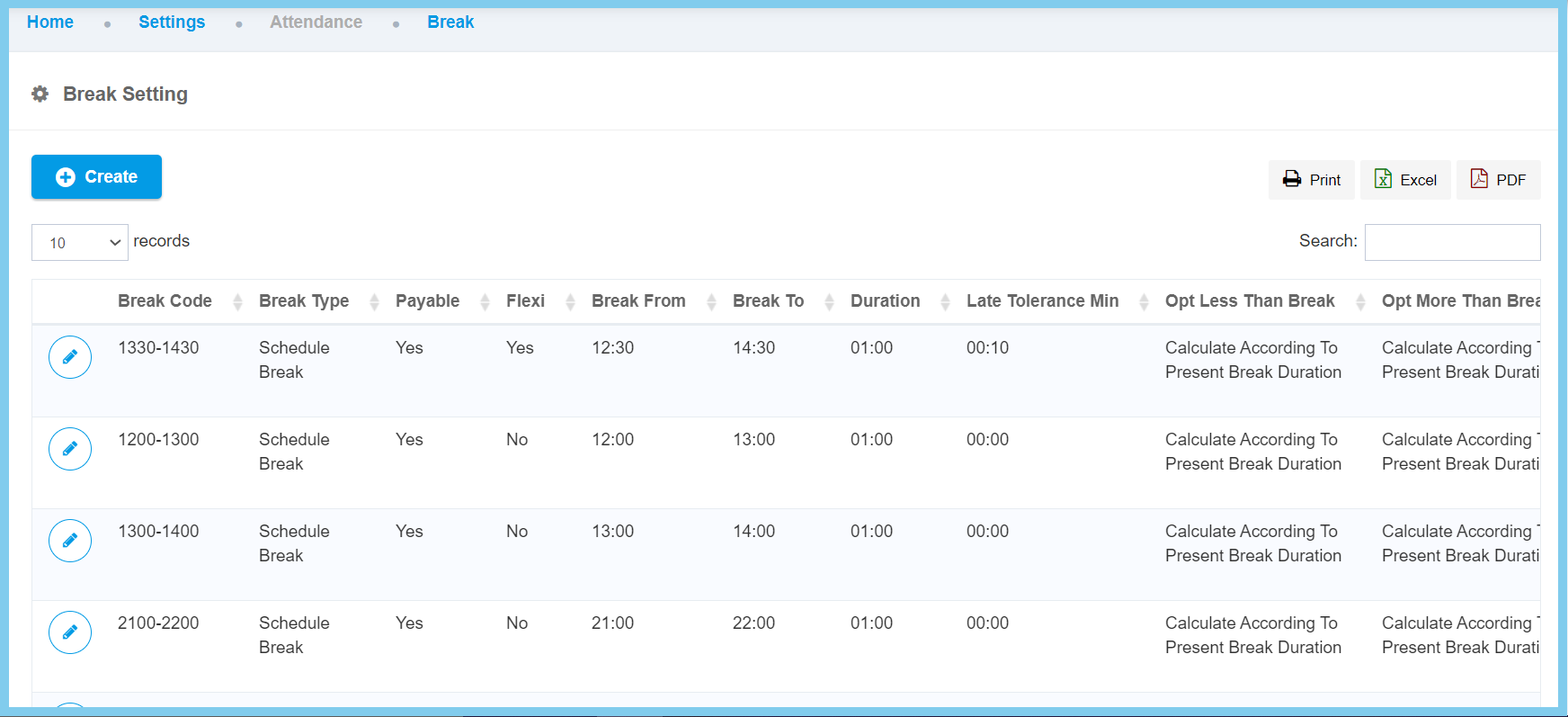
3. Click Create button.
4. Fill the form.
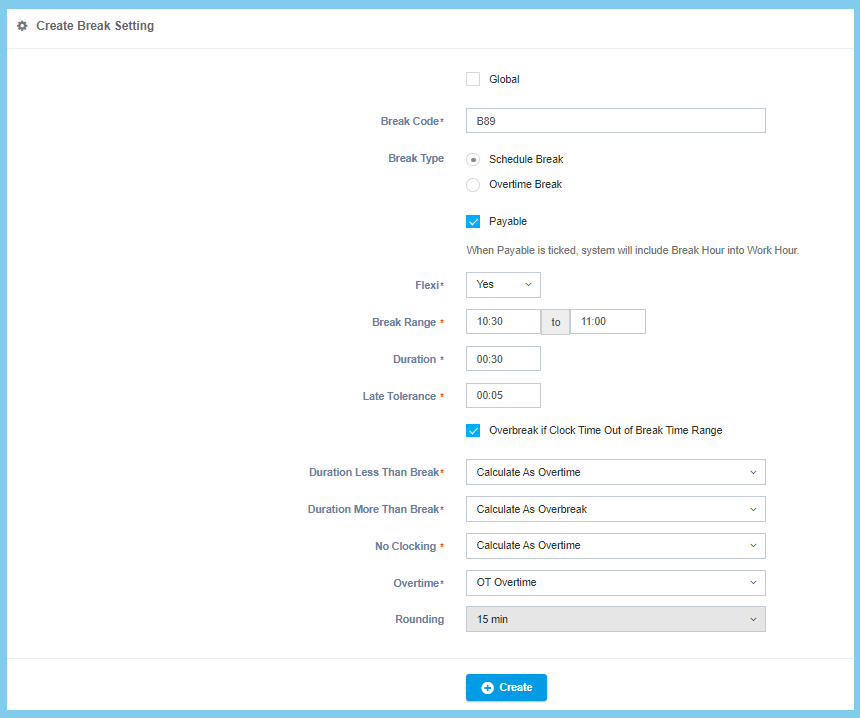
5. Click Create button.
Break Configuration Option Explanation
| Option | Allowed Values | Description |
|---|---|---|
| Global |
|
If global is enabled, the code will be visible from other companies. If not, it can only be used by its own company. |
| Break Code | Any alphanumeric | To set simple and unique code to define the break code. |
| Break Type |
|
|
| Payable |
|
When payable is ticked, the system will include break hour into work hour. |
| Flexi |
|
When flexi is ticked, it allow employee have flexible start and finish break time within limit of duration time that been set. |
| Break Range (From) | Time format HH:MM | To set a time value for the break start time. |
| Break Range (To) | Time format HH:MM | To set a time value for the break end time. |
| Duration | Time format HH:MM | To set a limited range of time for the break in how many hours and minutes. |
| Late Tolerance | Time format HH:MM | To set a time value for how many hours and minutes that the employee can late in and will not count as overbreak. |
| Overbreak if Clock Time Out of Break Time Range |
|
If enabled, when employee clock time log is out of the break time range, it will consider as overbreak. |
| Duration Less Than Break |
|
To set when employee break clock time is less than actual break time, there are three selection to choose based on company policy:
|
| Duration More Than Break |
|
To set when employee break clock time is more than actual break time, there are three selection to choose based on company policy:
|
| No Clocking |
|
To set if no clocking during in break time, there are four selection to choose based on company policy:
|
| Overtime |
|
This allow to set the employee break time within in overtime schedule, there are six selection to choose based on company policy:
|
| Rounding | Setup from rounding | Set the attendance rounding code to round the time value according to the selected rounding method.
Click here to view setup. |
