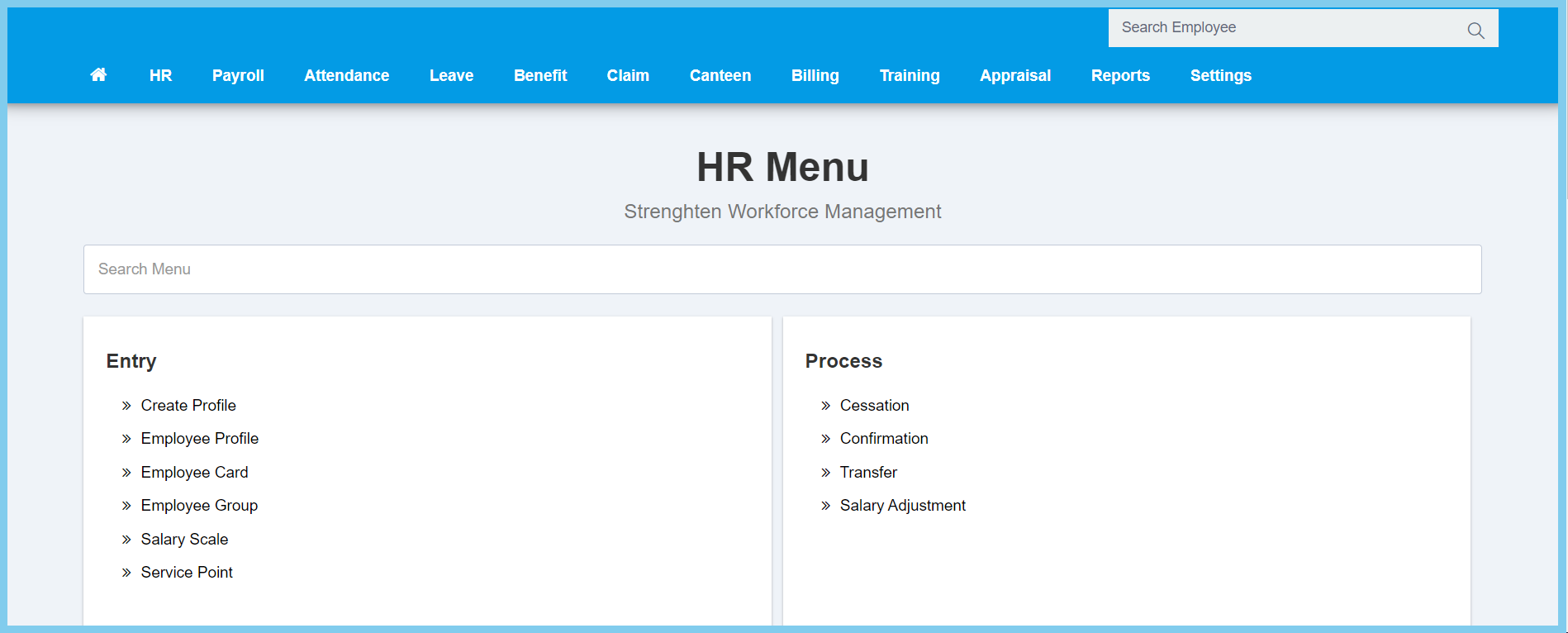
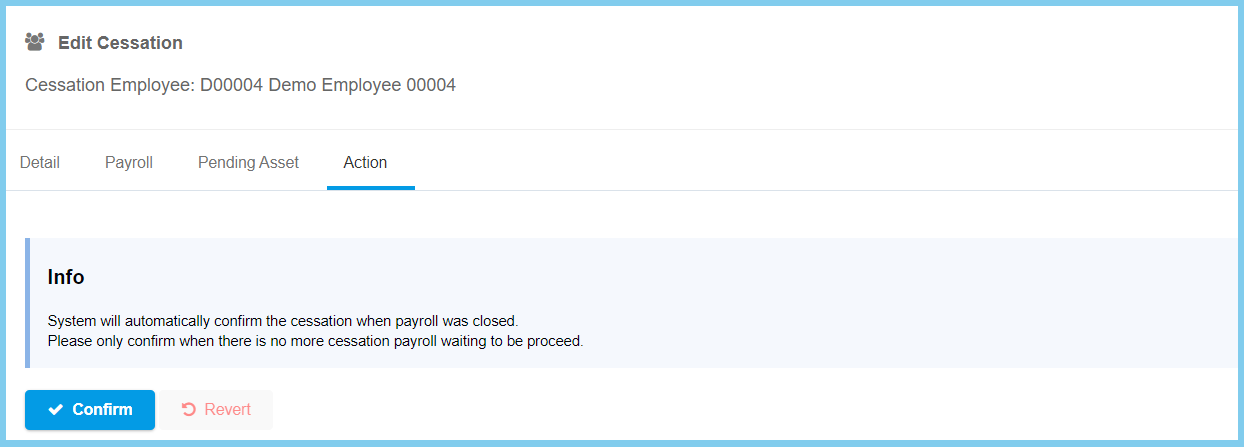
1. Menu: Click HR.
2. Click Cessation which located under Process.
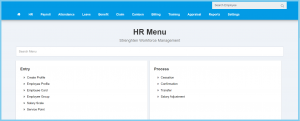
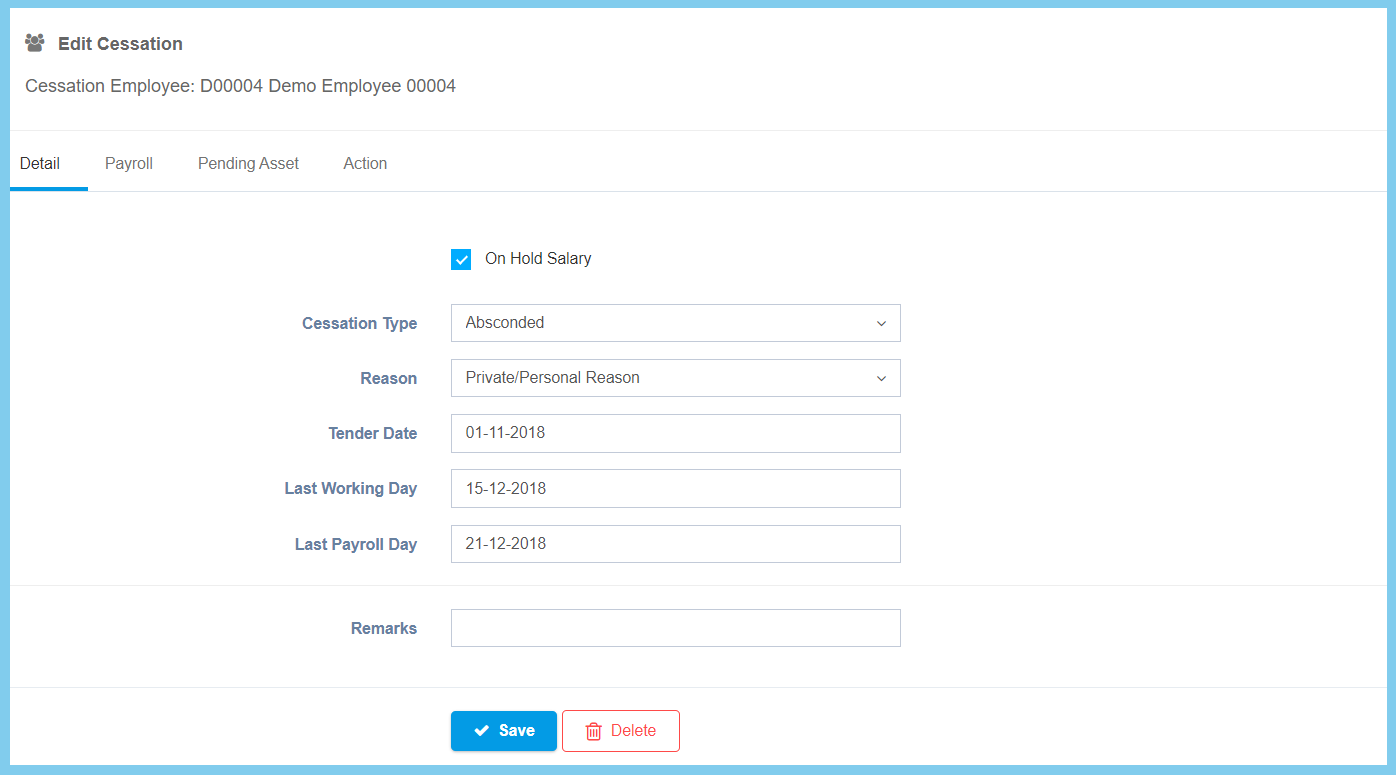
3. Click edit button on which cessation that you wish to edit.
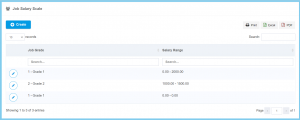
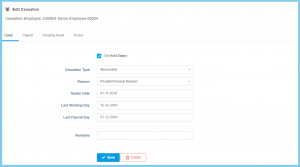
4. Edit the form.
| Option |
Allowed Values |
Description |
| On Hold Salary |
|
If enabled, the salary will not be paid to the resigned employee. It will be paid on the day the employee resigned. |
| Cessation Type |
Selection from cessation type |
Select the type of cessation from option available. |
| Reason |
Selection from reason |
Select the reason of cessation from option available. |
| Tender Date |
Select date from calendar |
Select the date of tender from calendar available. |
| Last Working Day |
Select date from calendar |
Select the date of last working day from calendar available. |
| Last Payroll Day |
Select date from calendar |
Select the date of last payroll day from calendar available. |
| Remarks |
Any alphanumeric |
Any additional remarks about this cessation. |
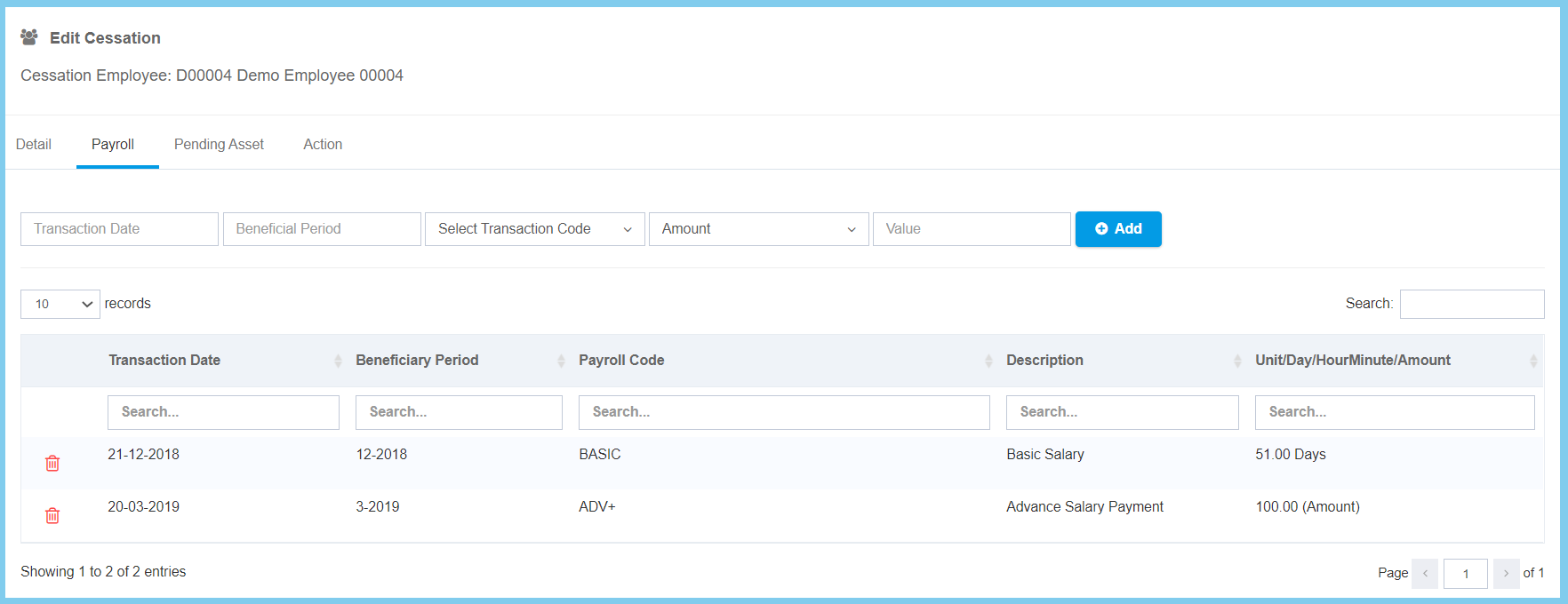
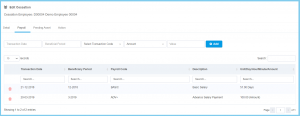
| Option |
Allowed Values |
Description |
| Transaction Date |
Select date from calendar |
Select the transaction date from calendar available. |
| Beneficial Period |
Select month and year from calendar |
Select the period of beneficial from option available. |
| Select Transaction Code |
Setup from trasaction code |
Select the transaction code from option available.
Click here to view setup. |
|
- Amount
- Hour Minutes
- Day
- Unit
|
Select the format for the trasaction. |
| Value |
Any number |
Enter the value of transaction. |
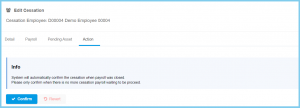
5. Click Confirm button.
Note: Please only confirm when there is no more cessation payroll waiting to be proceed.
5. Back to Detail
6. Click Save button.