
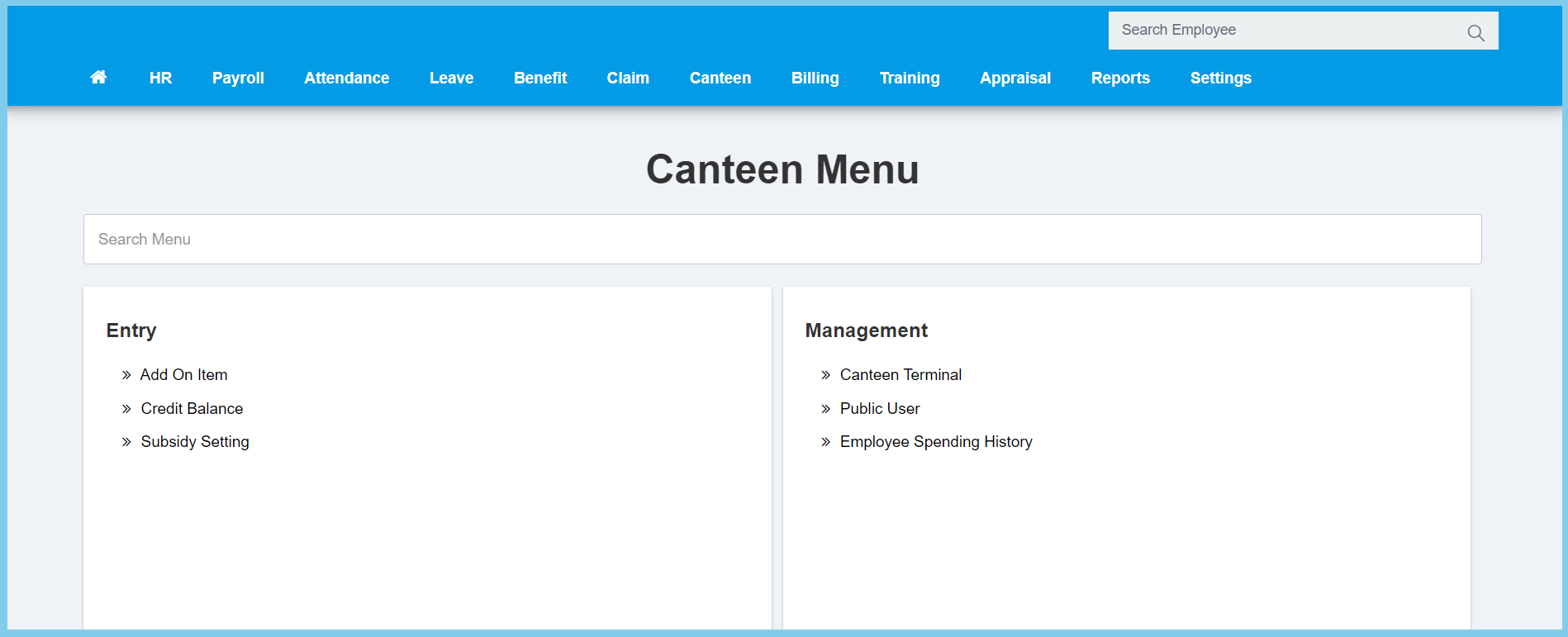
1. Menu: Click Canteen.
2. Click Employee Spending History which located under Process.
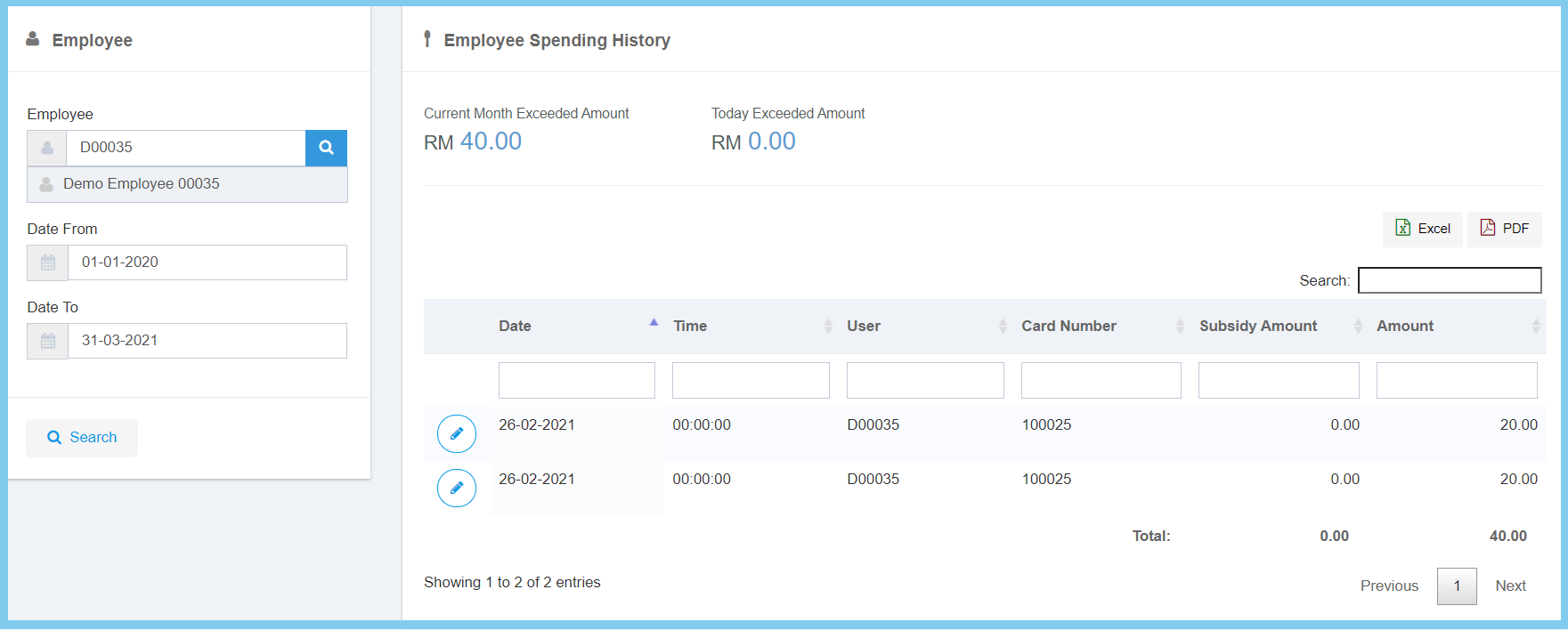
3. Enter employee number or select employee from employee list by click search icon.
4. Select initial date from calendar available.
5. Select date to from calendar available.
6. Click Search button.
7. Click edit button on which spending history that you wish to edit.
8. Edit the form.
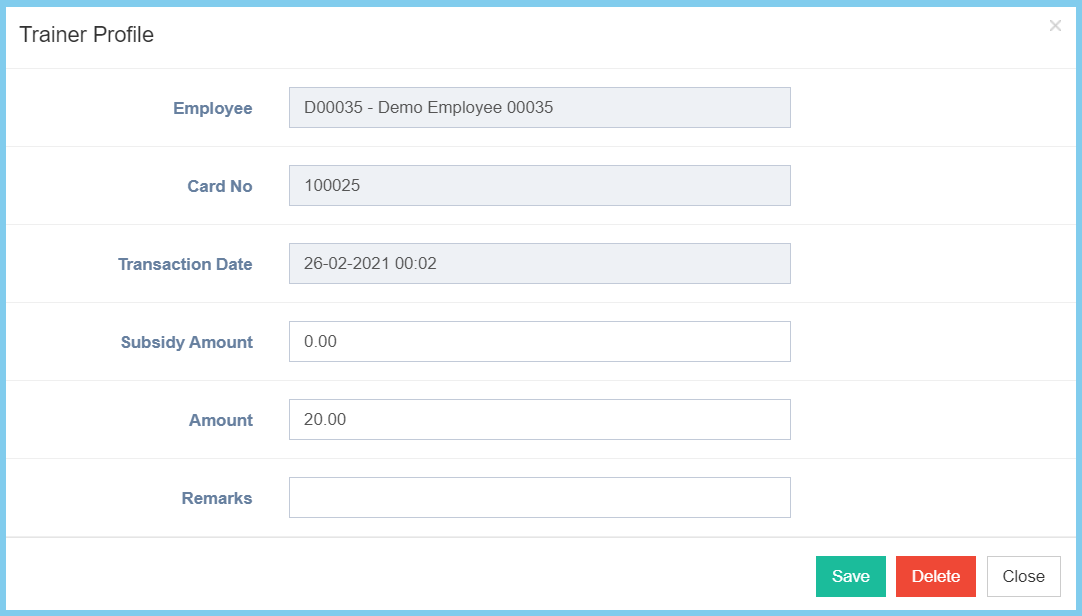
9. Click Save button.
Employee Spending History Configuration Option Explanation
| Option | Allowed Values | Description |
|---|---|---|
| Employee | Not specified | The employee number and name. It is not editable. |
| Card No | Not specified | The employee card number. It is not editable. |
| Trasaction Date | Not specified | The trasaction date of the card. It is not editable. |
| Subsidy Amount | Any number | Enter the amount of subsidy. |
| Amount | Any number | Enter the amount that employee spent. |
| Remarks | Any alphanumeric | Any additional remarks about this speding history. |
