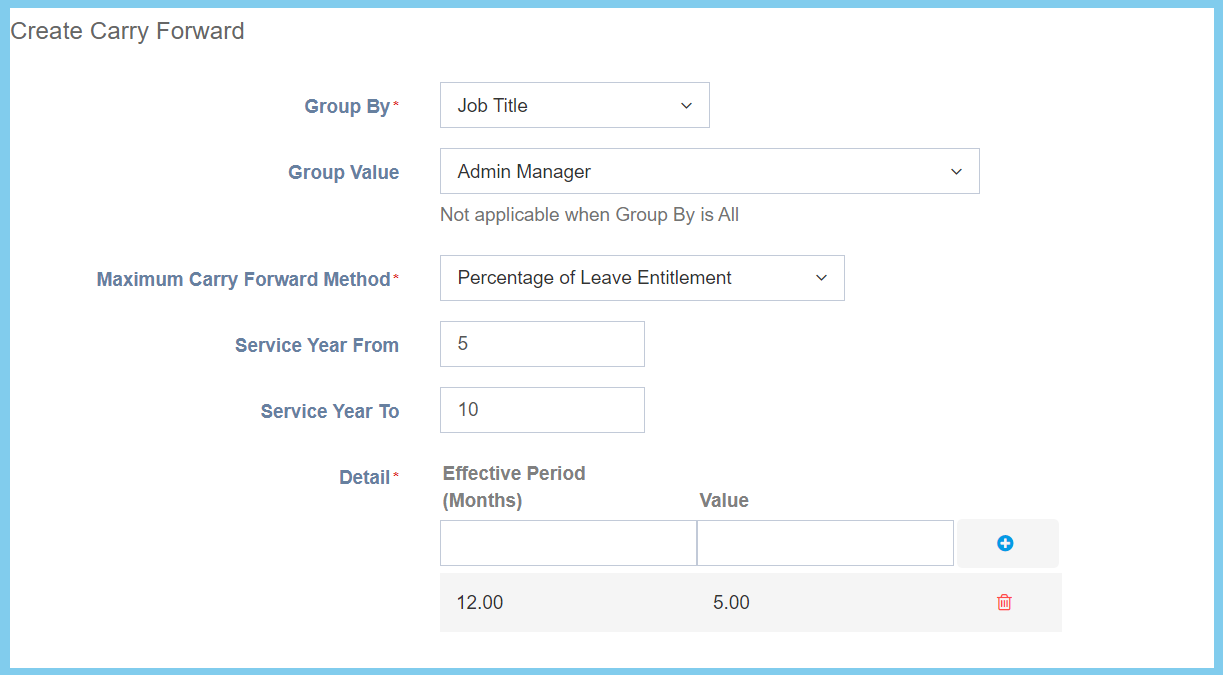
1. Menu: Click Settings.
2. Click Leave Code which located under Leave.
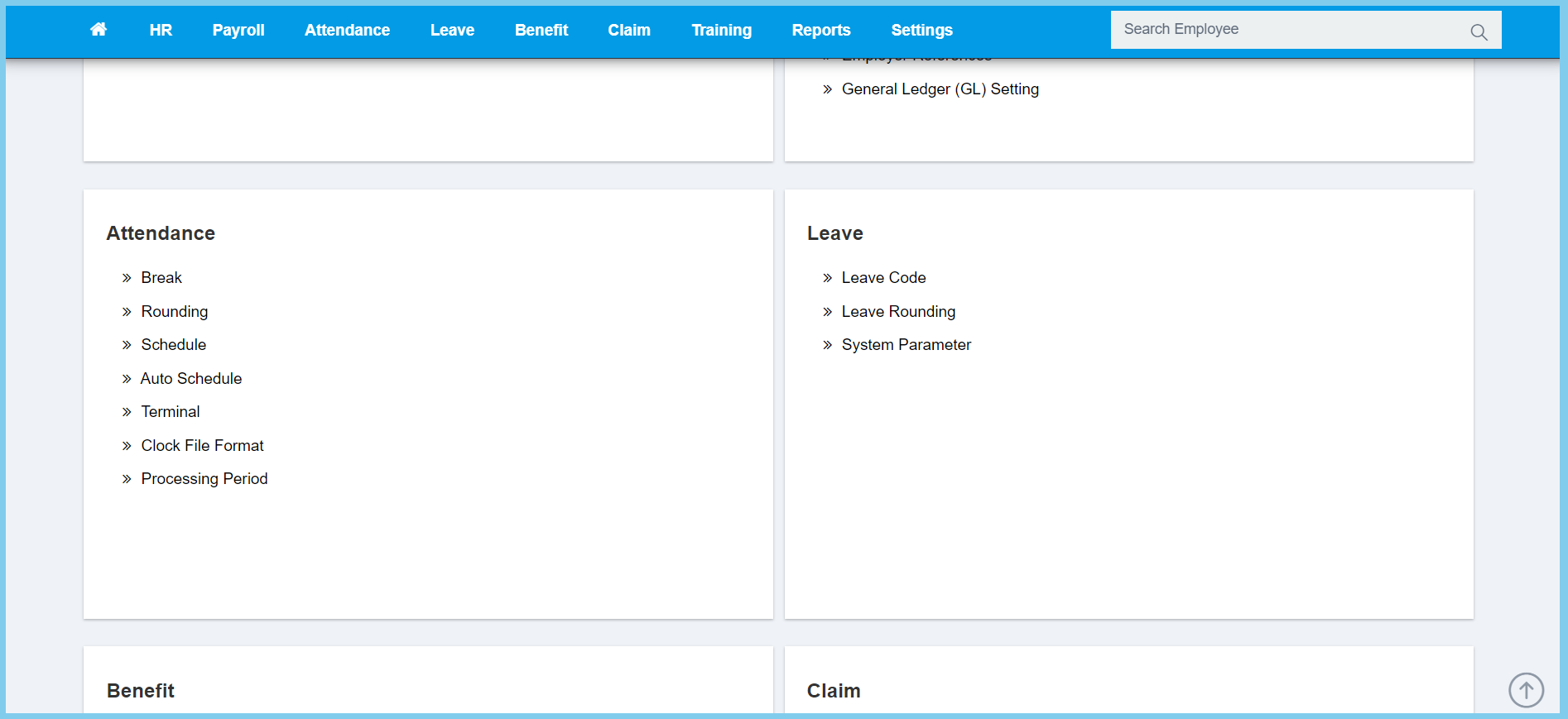
3. Click edit button on which leave code that you wish to edit.
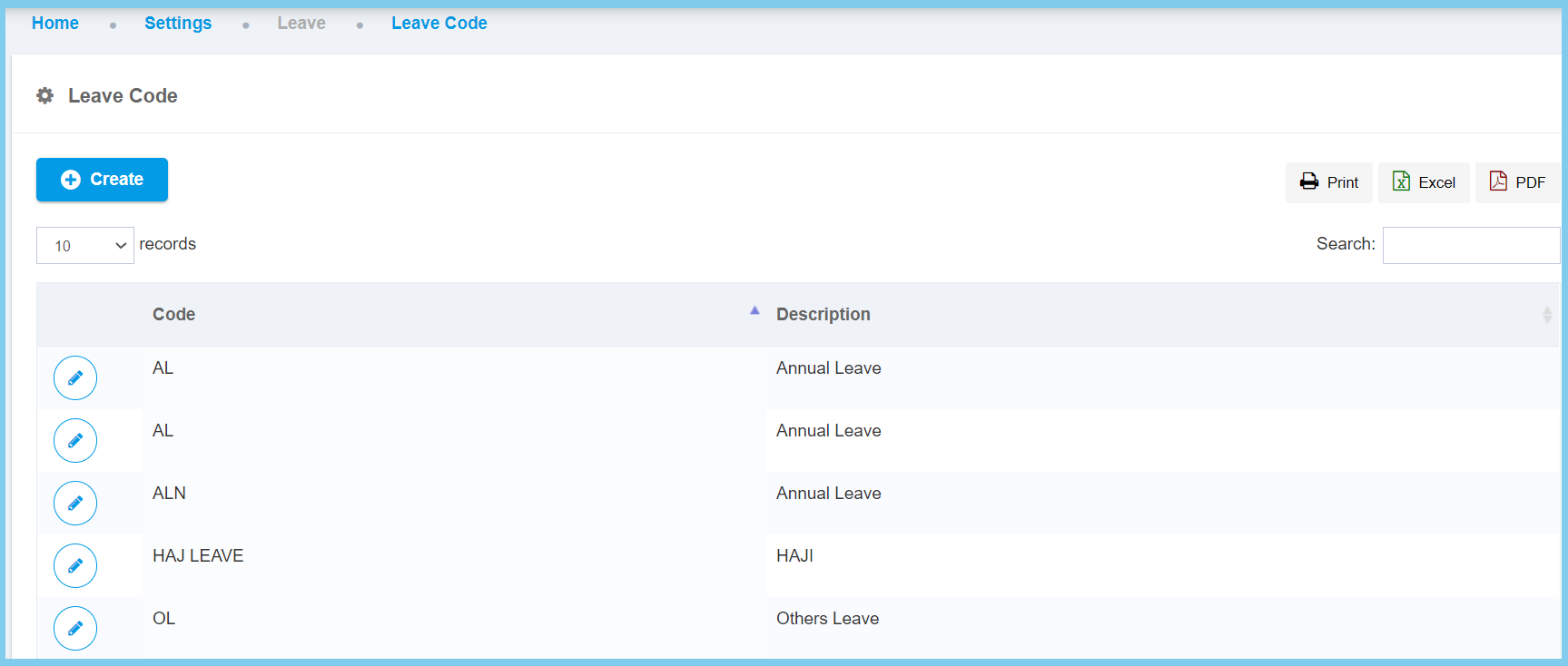
4. Edit the form.
Note: There has 3 section to edit.
5. Back to Detail section.
6. Click Save button.
Leave Code Configuration Option Explaination
| Option | Allowed Values | Description |
|---|---|---|
| Global |
|
If global is enabled, the code will be visible from other companies. If not, it can only be used by its own company. |
| Leave Code | Any alphanumeric | To set simple and unique code to define leave code. |
| Description | Any alphanumeric | Any description about this leave code. |
| Visible in ESS |
|
Choose whether of this leave code is visible or not in employee self service. |
| Allow Back-dated Leave Application |
|
This allow employee can apply the leave even after the leave was taken without apply it earlier. |
| Mandatory Attachment |
|
Apply this option when employee apply the leave, it require to submit a attachment to support it for apply success. |
| Require HR as Last Approval (Only applied to ESS) |
|
Apply this option when employee apply this leave are required HR as last approval. It only applied to employee self service. |
| Consecutive Day |
|
Apply this option so the days following after the other without an interruption resulting from a discharge. |
| Validate Shared Leave Balance |
|
Apply this option to validate the shared leave balance for employee. |
| Days required before applying leave | Any number | Set the number of days that employee have to apply leave before working days. |
| Option | Allowed Values | Description |
|---|---|---|
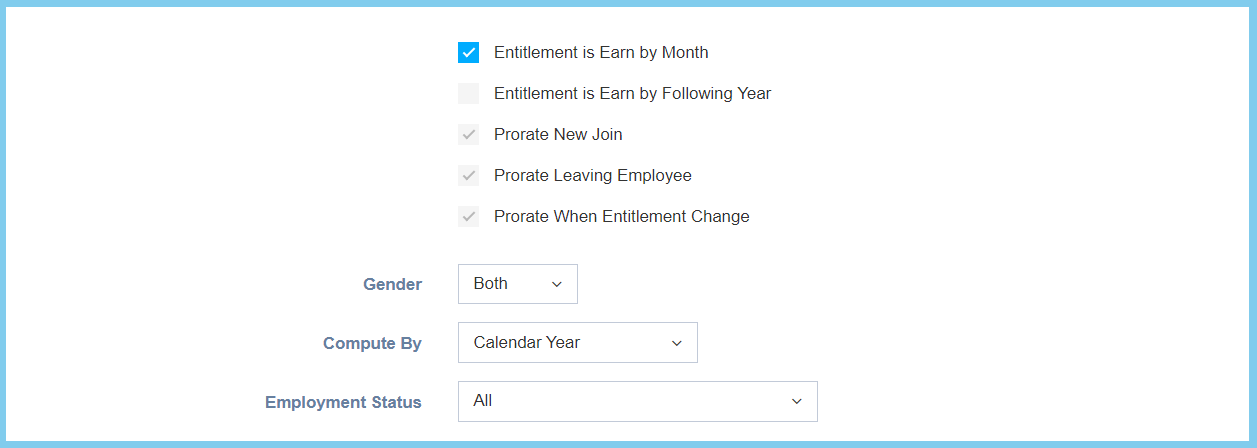
| Entitlement is Earn by Month |
|
If enabled, the entitlement will be earn by month to employee. |
| Entitlement is Earn by Following Year |
|
If enabled, the entitlement will be earn by following year to employee. |
| Prorate New Join |
|
If enabled, it will divide leave proportionally for new join employee. |
| Prorate Leaving Employee |
|
If enabled, it will divide leave proportionally for leaving employee. |
| Prorate When Entitlement Change |
|
If enabled, it will divide leave proportionally according to entitlement. |
| Gender |
|
Set whether this leave code is eligibility for the employee gender that are only for male, female or both of it. |
| Compute By |
|
To set the leave entitlement to be compute by either in calendar year, financial year or anniversary year.
|
| Employment Status |
|
Set whether this leave code is eligibility for the employment status. |
| Option | Allowed Values | Description |
|---|---|---|
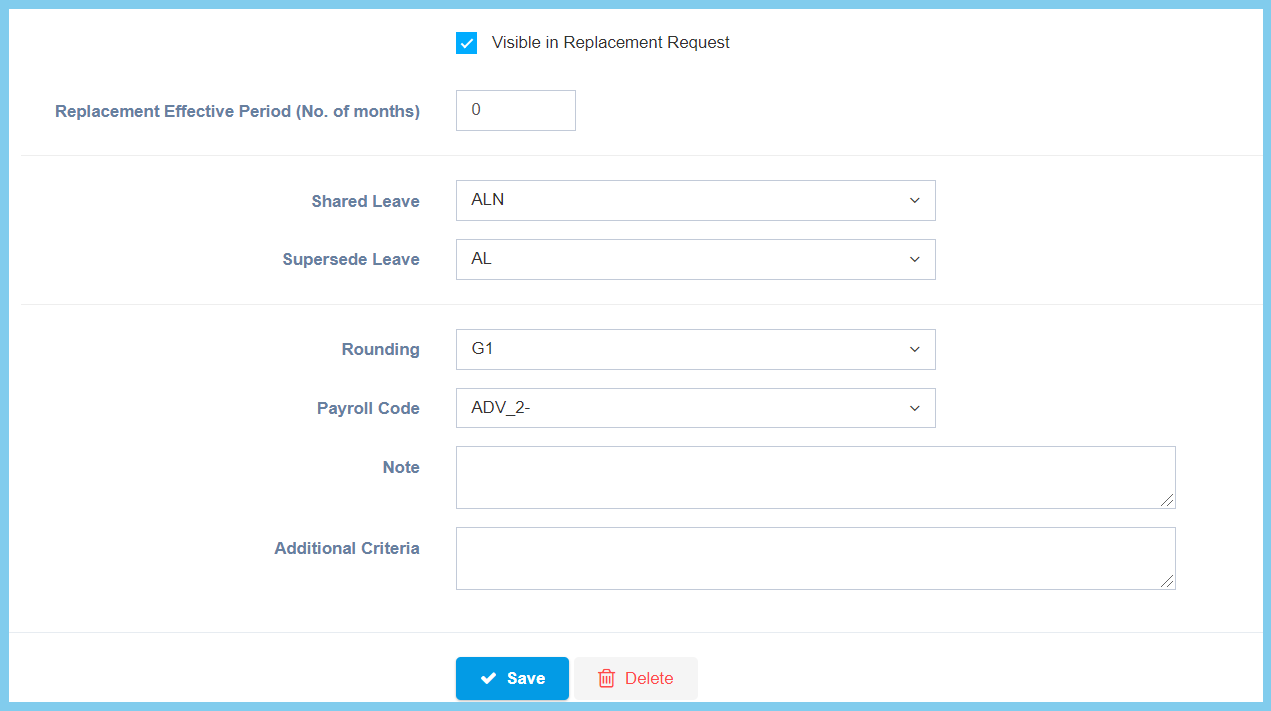
| Visible in Replacement Request |
|
If enabled, this leave code will visible in replacement request. |
| Replacement Effective Period (No. of months) | Any number | Set the value of month of this replacement request can effective in how many period. |
| Shared Leave | Setup from leave code | Select the shared leave code of employee with this leave code.
Click here to view setup. |
| Supersede Leave | Setup from leave code | Select the supersede leave code of employee for this leave code.
Click here to view setup. |
| Rounding | Setup from rounding | Select the rounding method for calculate leave balance
Click here to view setup. |
| Payroll Code | Setup in transaction code | Set the leave entitlement if this is belong to which of the payroll code.
Click here to view setup. |
| Note | Any alphanumeric | Any extra note about this leave code. |
| Additional Criteria | Any alphanumeric | Any additional criteria about this leave code. |
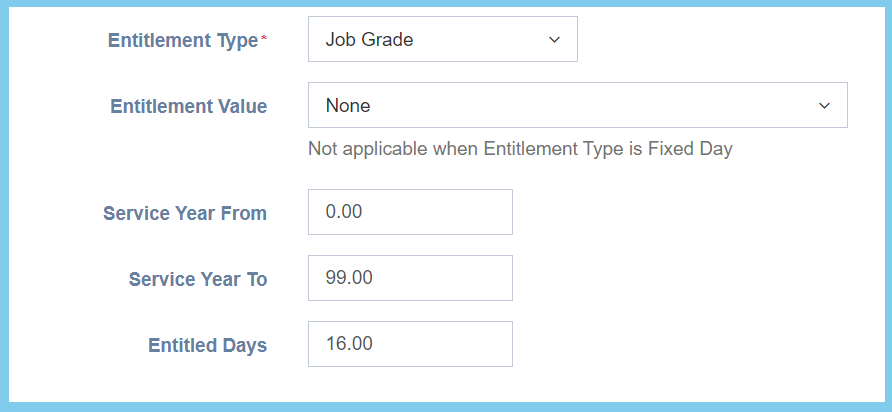
For Entitlement, you can choose either create a new entitlement or edit previous record.
| Option | Allowed Values | Description |
|---|---|---|
| Entitlement Type |
|
Set the entitlement type whether in fixed day, category, job grade or job title. |
| Entitlement Value | Choose from value | The entitlement value will change according to the option of entitlement type.
No applicable when entitlement type is fixed day. |
| Service Year From | Any number | Set the value of service year from which the entitlement is eligibility for employee. |
| Service Year To | Any number | Set the value of service year to which the entitlement is eligibility for employee. |
| Entitled Days | Any number | Set the value of days that entitled. |
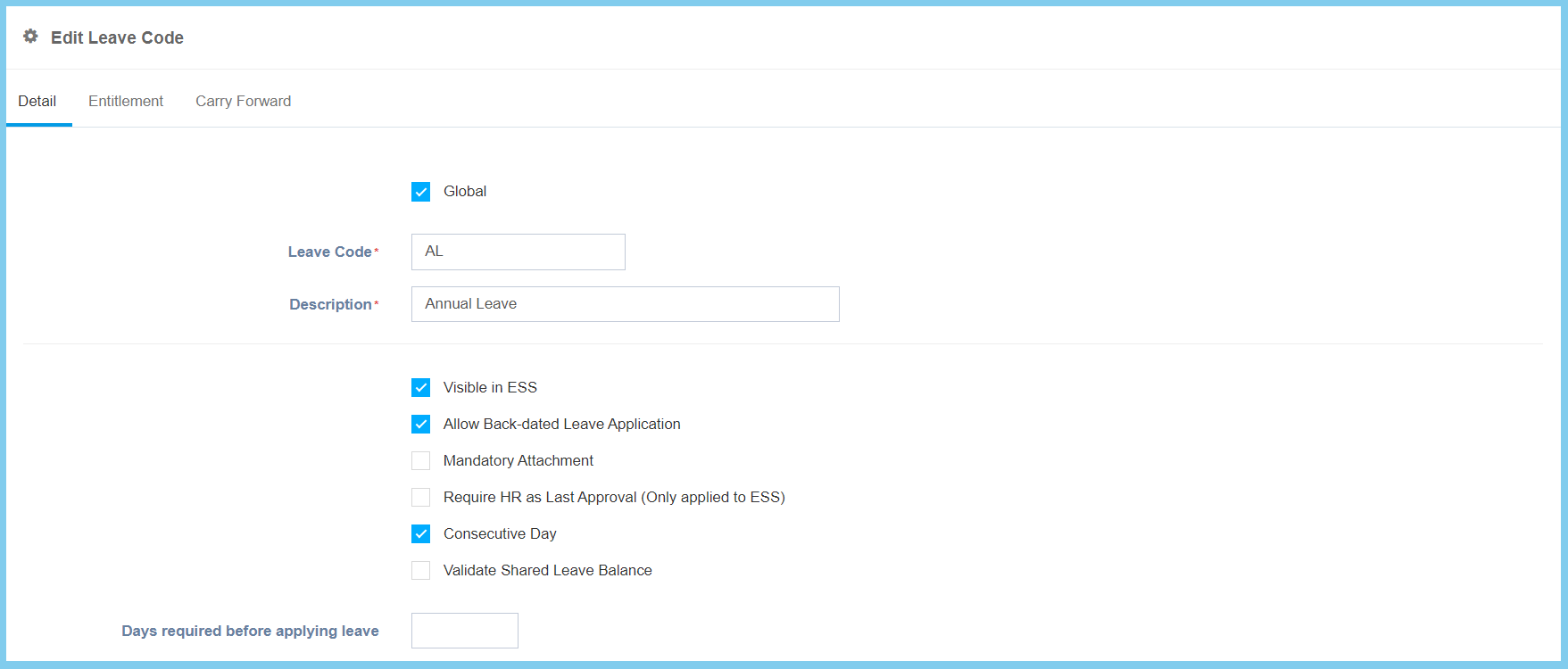
For Carry Forward, you can choose either create a new carry forward or edit previous record.
| Option | Allowed Values | Description |
|---|---|---|
| Group By |
|
Choose the method for carry forward whether group by all, job title or job grade. |
| Group Value | Selection from group value | The group value will change according to the option of group by.
Not applicable when group by is all.
|
| Maximum Carry Forward Method |
|
Set the method of maximum carry forward whether by percentage of leave balance, percentage of leave entitlement or fixed day. |
| Service Year From | Any number | Set the value of service year from which the leave entitlement is eligibility for employee. |
| Service Year To | Any number | Set the value of service year to which the leave entitlement is eligibility for employee. |
| Effective Period (Months) | Any number | Set a value for effective period of carry forward by month. |
| Value | Any number | Set the value for the carry forward. |