
1. Edit Employee Profile.
2. Click Profile.
3. Update information if you wish to.
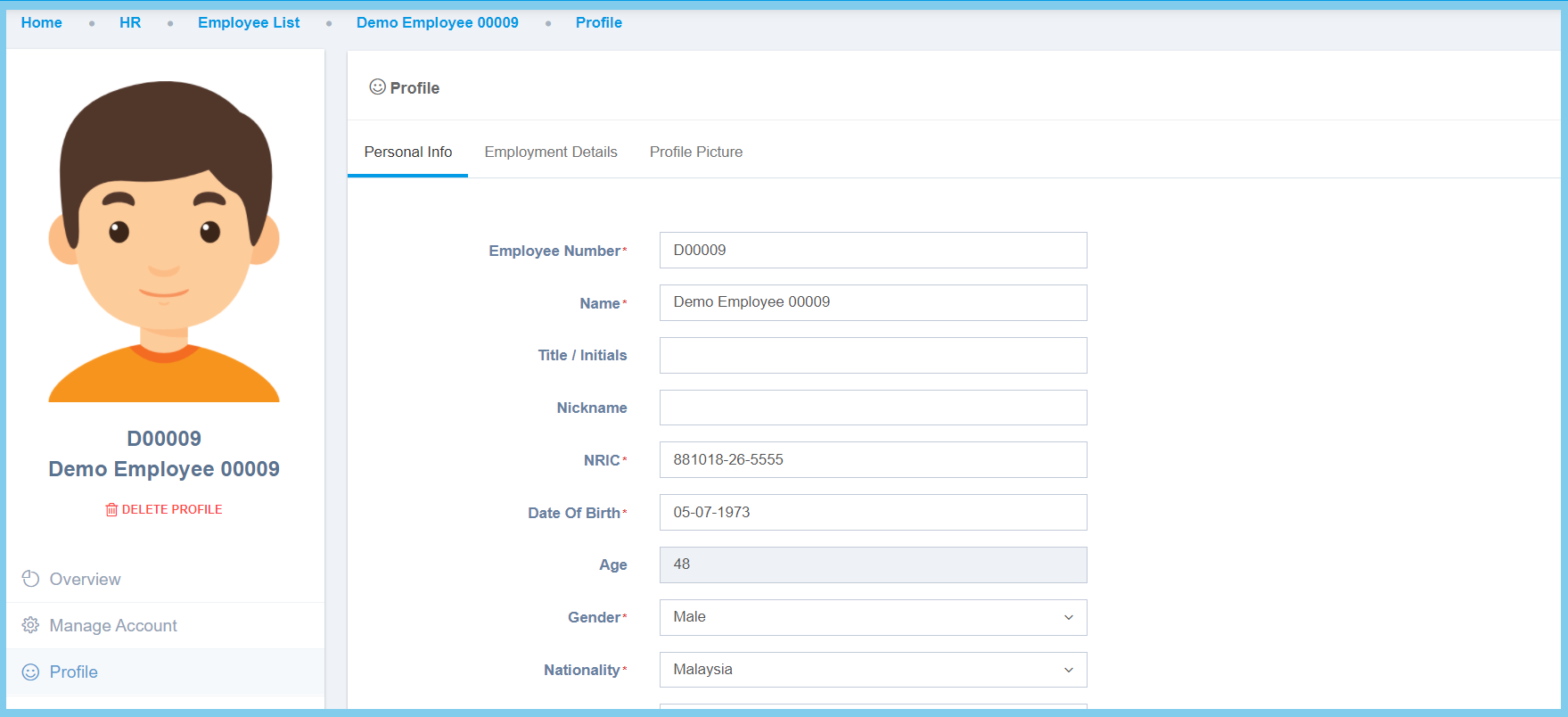
Note: There has 3 section to update.
4. Click Save button.
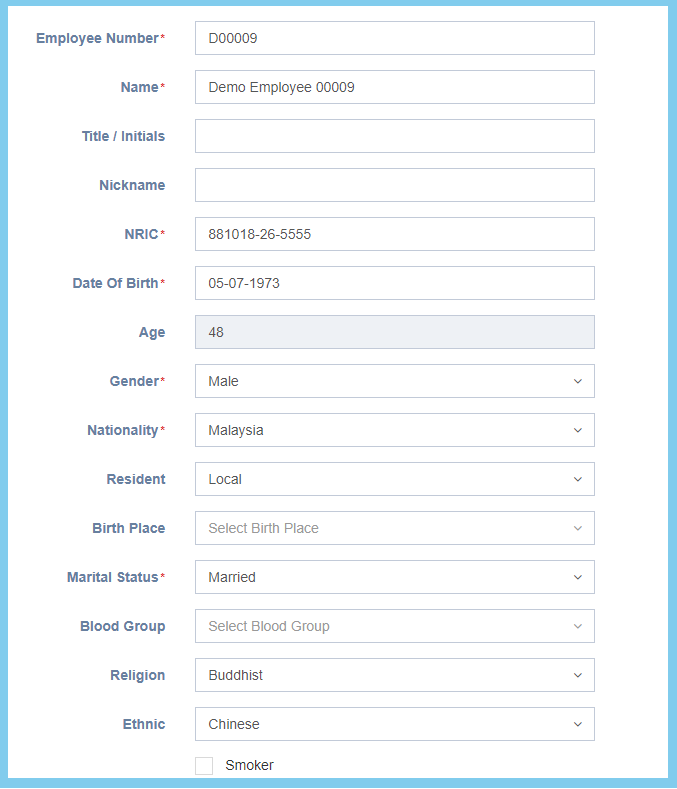
Employee Profile Configuration Option Explaination
| Option | Allowed Values | Description |
|---|---|---|
| Employee Number | Any number | Enter the unique employee number. |
| Name | Any alphanumeric | Employee name. |
| Title/Initials | Any alphanumeric | Employee personal title such as Mr or Mrs. |
| Nickname | Any alphanumeric | Employee nickname. |
| NRIC | Any number | Employee IC number. |
| Date Of Birth | Select date from calendar | Select employe date of birth from calendar vailable. |
| Age | Not specified | When click save button, the age will automatic show the age based from the date selected. |
| Gender |
|
Select the employee gender from option available. |
| Nationality | Setup from code settings | Select the employee nationality from option available.
Click here to view setup for country. |
| Resident |
|
Select the employee their resident status from option available.
This option will affect calculation in monthly tax deduction. |
| Birth Place | Setup from code settings | Select the employee birth place from option available.
Click here to view setup for birth place. |
| Marital Status |
|
Select the employee marital status from option available.
This option will affect calculation in monthly tax deduction. |
| Blood Group |
|
Select the employee blood group type from option available. |
| Religion | Setup from code settings | Select the employee religion from option available.
Click here to view setup for religion. |
| Ethnic | Setup from code settings | Select the employee ethnic from option available.
Click here to view setup for ethnic. |
| Smoker |
|
To identify whether the employee is a smoker or not. |
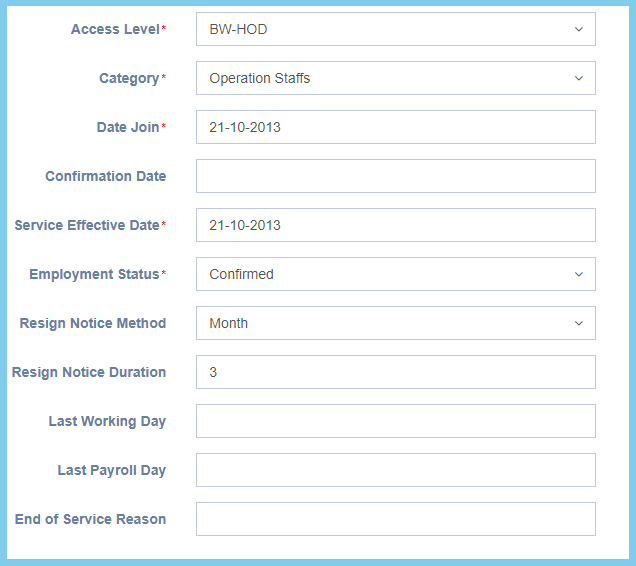
| Option | Allowed Values | Description |
|---|---|---|
| Access Level | Setup from access level | Select employee access level from option available.
Click here to view setup. |
| Category | Setup from code settings | Select employee category from option available.
Click here to view setup for employee category. |
| Date join | Select date from calendar | Select the date for employee that join to company from calendar available. |
| Confirmation date | Select date from calendar | Select the date for employee who has been confirmed from calendar available. |
| Service Effective Date | Select date from calendar | Select the start date for employee service effective from calendar available. It will affect the entitlement calculation. |
| Employee Status | Selection from employee status | Select employee status from option available. |
| Resign Notice Method |
|
Select a method for resign notice whether by month or by day. |
| Resign Notice Duration | Any number | Set the duration notice before employee resign. |
| Last Working Day | Select date from calendar | Select employee last working day from calendar available. |
| Last Payroll Day | Select date from calendar | Select employee last payroll day from calendar available. |
| End of Service Reason | Any alphanumeric | Any reason about employee terminate their job or service. |
Profile Picture
1. Click Select Image button.
2. Select an image.
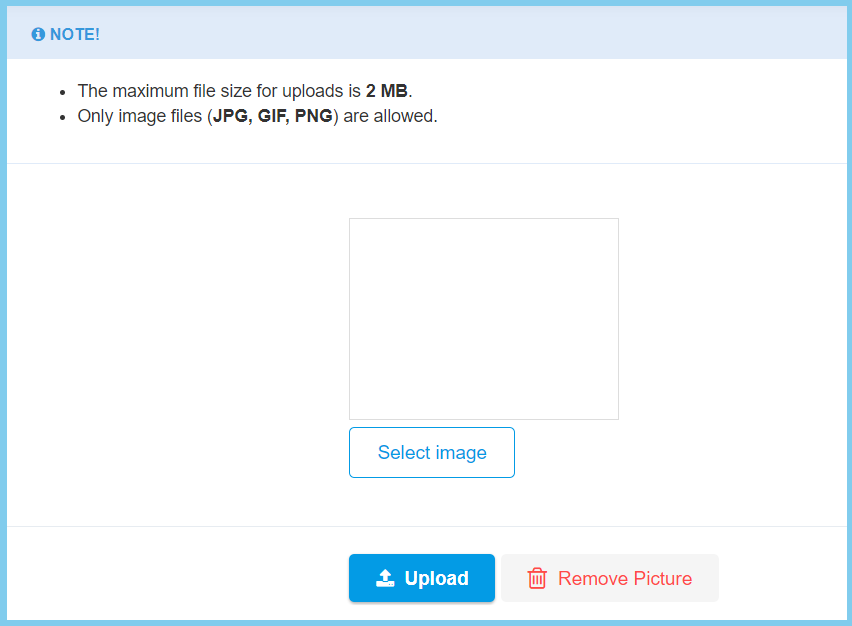
3. Click Upload button.
